Book an appointment using the appointment calendar
-
Double-click on an available time slot in the appointment calendar (shown in grey) to choose the appointment start time.
Watch the short video below to see how to create a new appointment from the calendar:
Creating a new appointment from the calendar view - Start typing in the Client field to search for an existing client. Select the correct client from the results list.
- Check the Staff Member is correct, then select the appropriate treatment (called Service) from the dropdown list. If you don’t see the correct option, check that your treatments and services are set up.
- Confirm the appointment date and duration (adjust if needed), then click Book Appointment to save the booking.
Need to edit, reschedule or cancel an appointment?
Book an appointment directly from a client profile
-
Open up the client profile and select 'Add Appointment' from the menu.
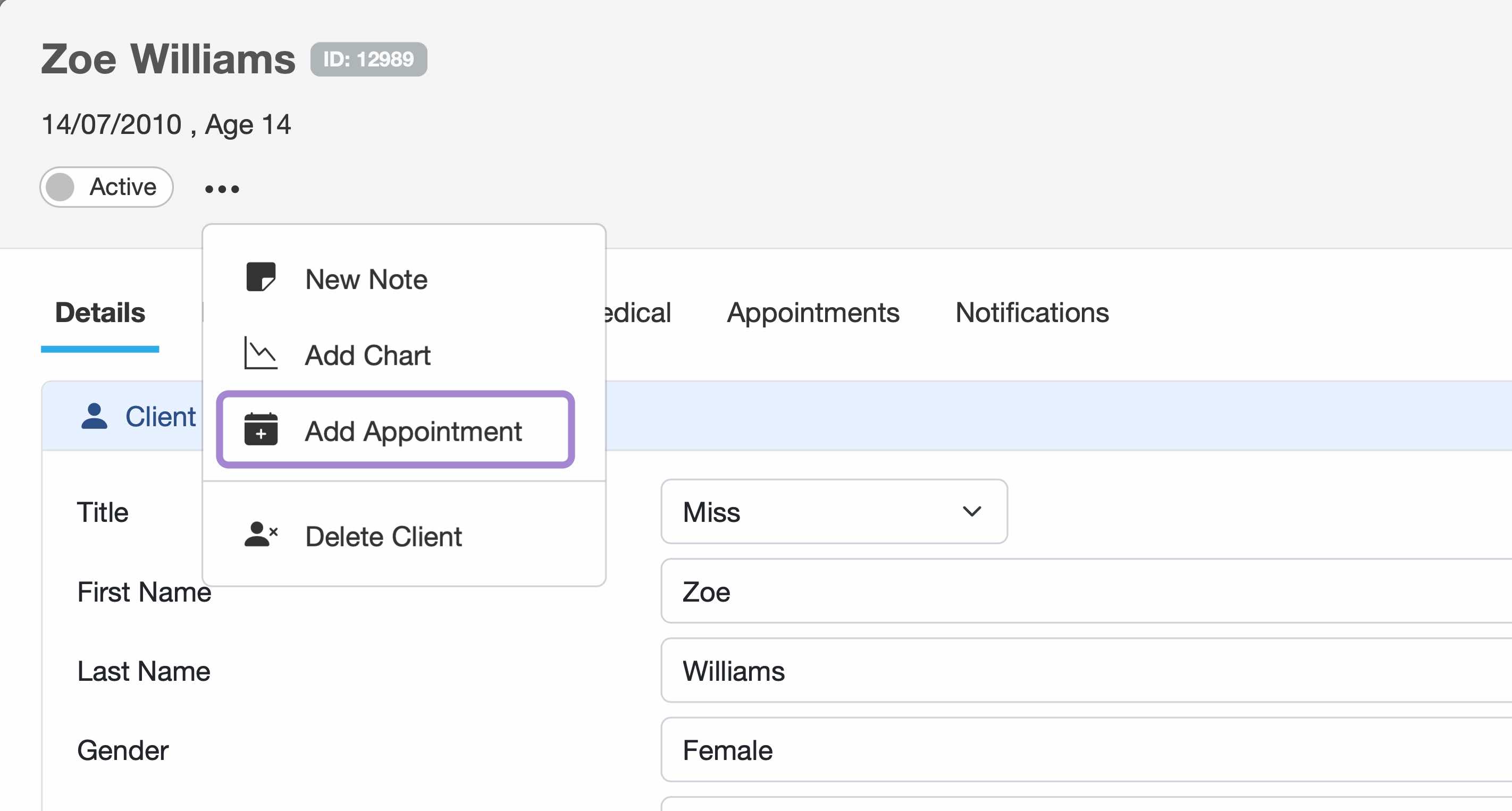
Click “Add Appointment” from the client profile to open the booking panel. - Complete the booking details, including staff member, treatment, date and time. Then click Book Appointment to confirm.
Related articles
Updated: 11 February 2026