Change your working hours (edit a session)
When you sign up to Smilenotes, the default working hours are from 8am to 5pm, Monday to Friday. To modify this, follow the steps below:
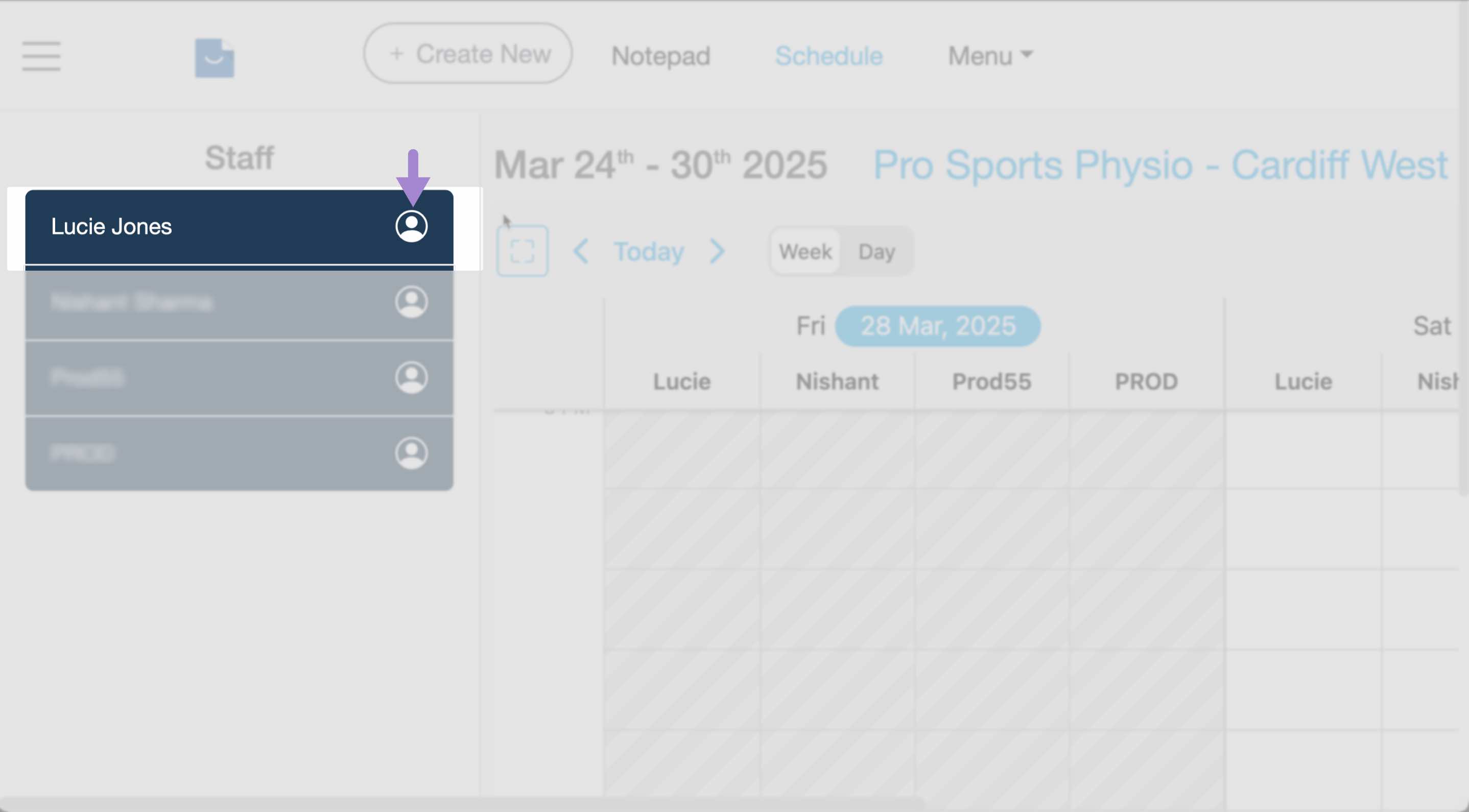
- Head over to the Schedule page and click the person icon next to their name to open their profile. You can also access profiles via Settings → Team.
- Select the Sessions tab to view available working hours.
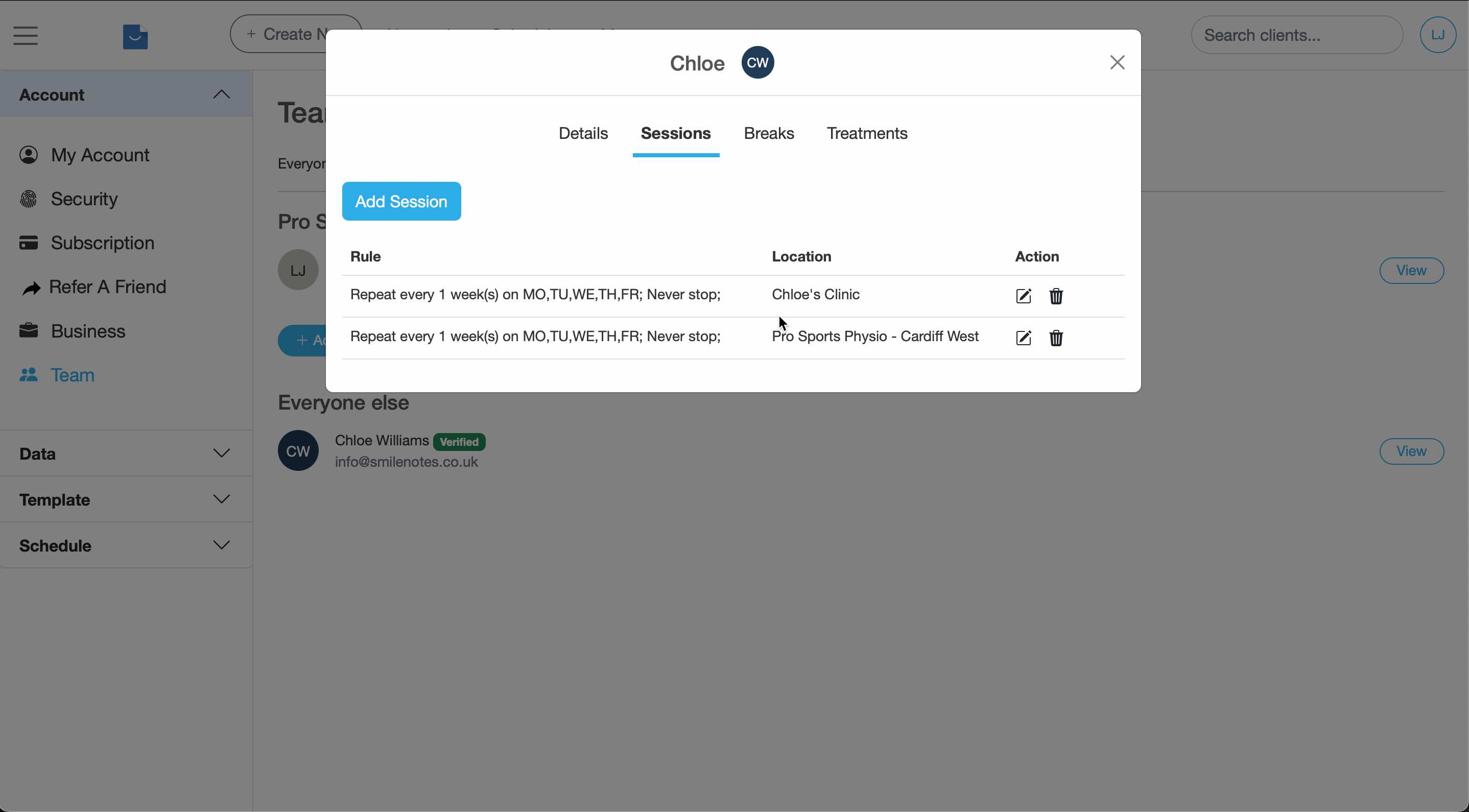
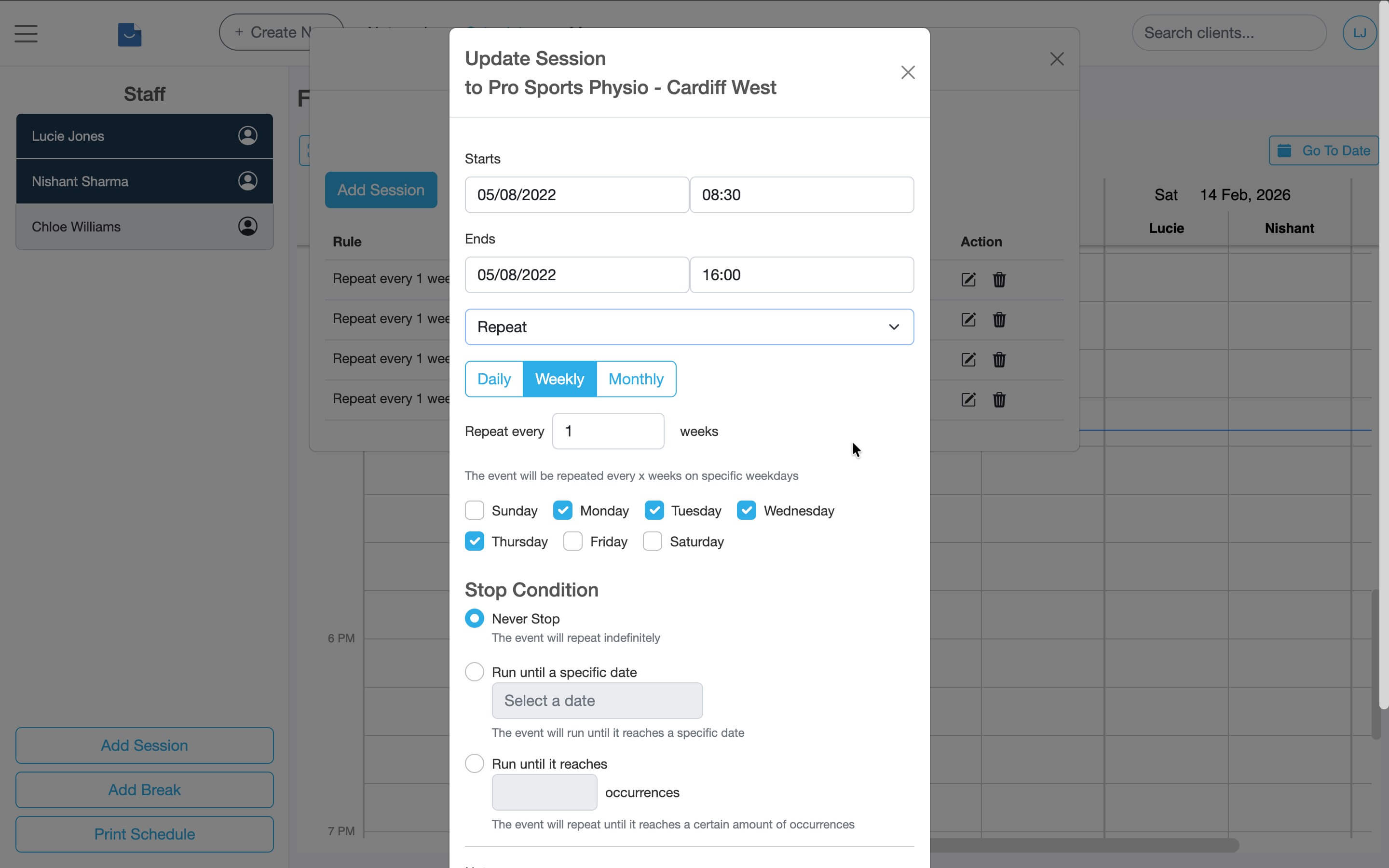
- To edit an existing session click the edit icon, make your changes, then click Save.
- Edit start and end times.
- Set how often the session repeats or when it should stop.
- Select your working days.
Add working hours (create a new session)
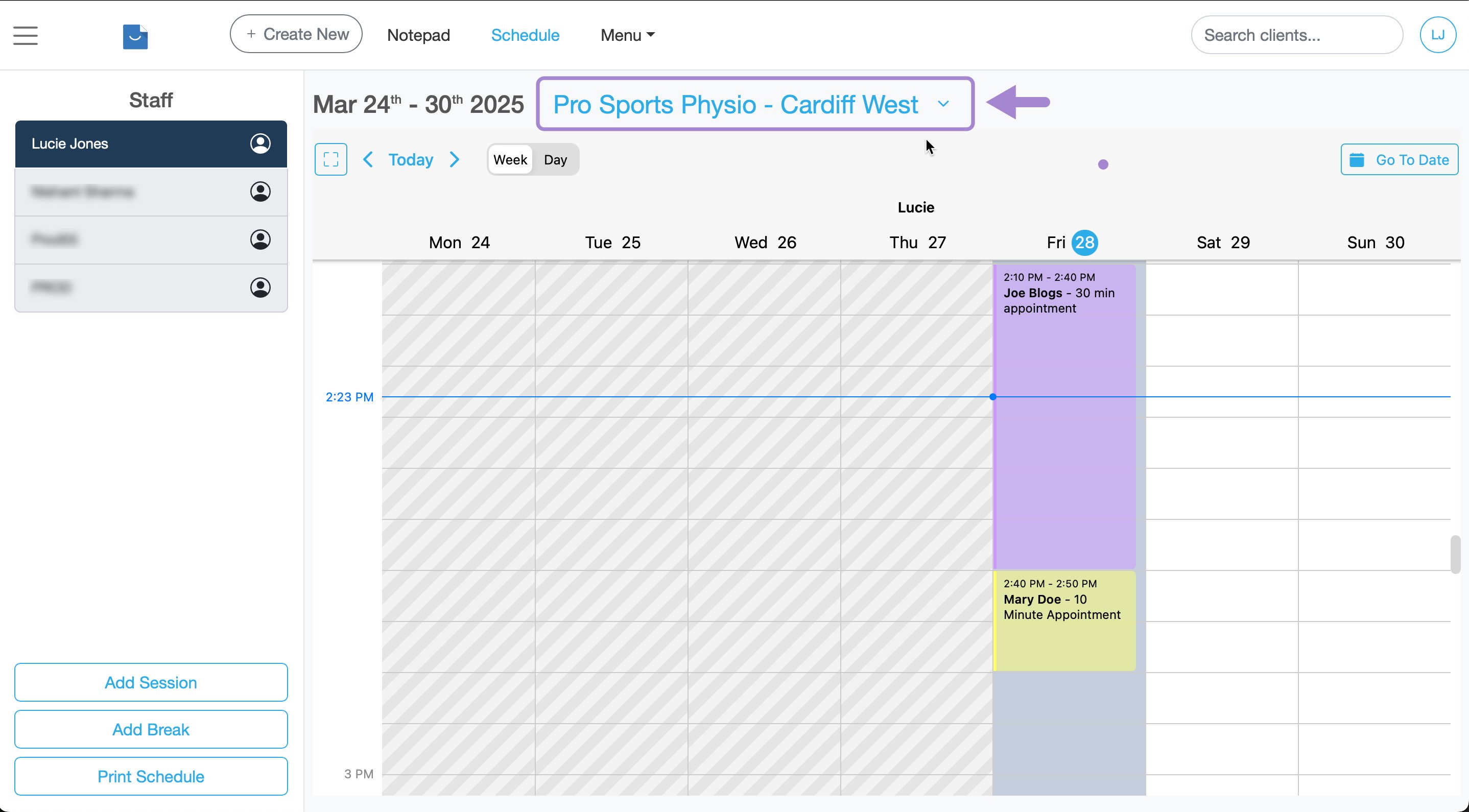
If you have multiple locations available (for example, if you are a team member on another account you'll have your own personal location linked to your personal Smilenotes account and at least one other shared location), ensure you are logged into the correct location.
- Load up the location you wish to use by selecting it from the dropdown menu on the schedule or by selecting the appropriate location when you log in to Smilenotes.
- Head over to the Schedule page and click on the person icon next to the team member to edit the profile. (You can also access your user profile by going to : Settings > Team).
- Select the Sessions tab then click Add Session to create a new session.
- Choose the day(s), start time and end time, then set whether it repeats.
- Click Save. Repeat for other locations if needed.
Answers to common questions
Sessions are set per location. Make sure you are viewing the correct location in the Schedule dropdown.
If no Sessions are set for that location, your availability will not appear on the calendar.
Sessions define when an individual team member is available for appointments.
Practice opening hours control the overall time range shown on the calendar.
Yes. Admin users and the account owner can edit Sessions for other team members via the Schedule page or Settings → Team.
Set practice opening hours (calendar time range)
Need to change the overall opening and closing times for your practice? These times are separate from working hours and allow you to specify the overall time range of the appointment calendar.
Set up practice opening hoursUpdated: 11 February 2026