Open the Team settings page
- Go to Account → Team in the settings menu.
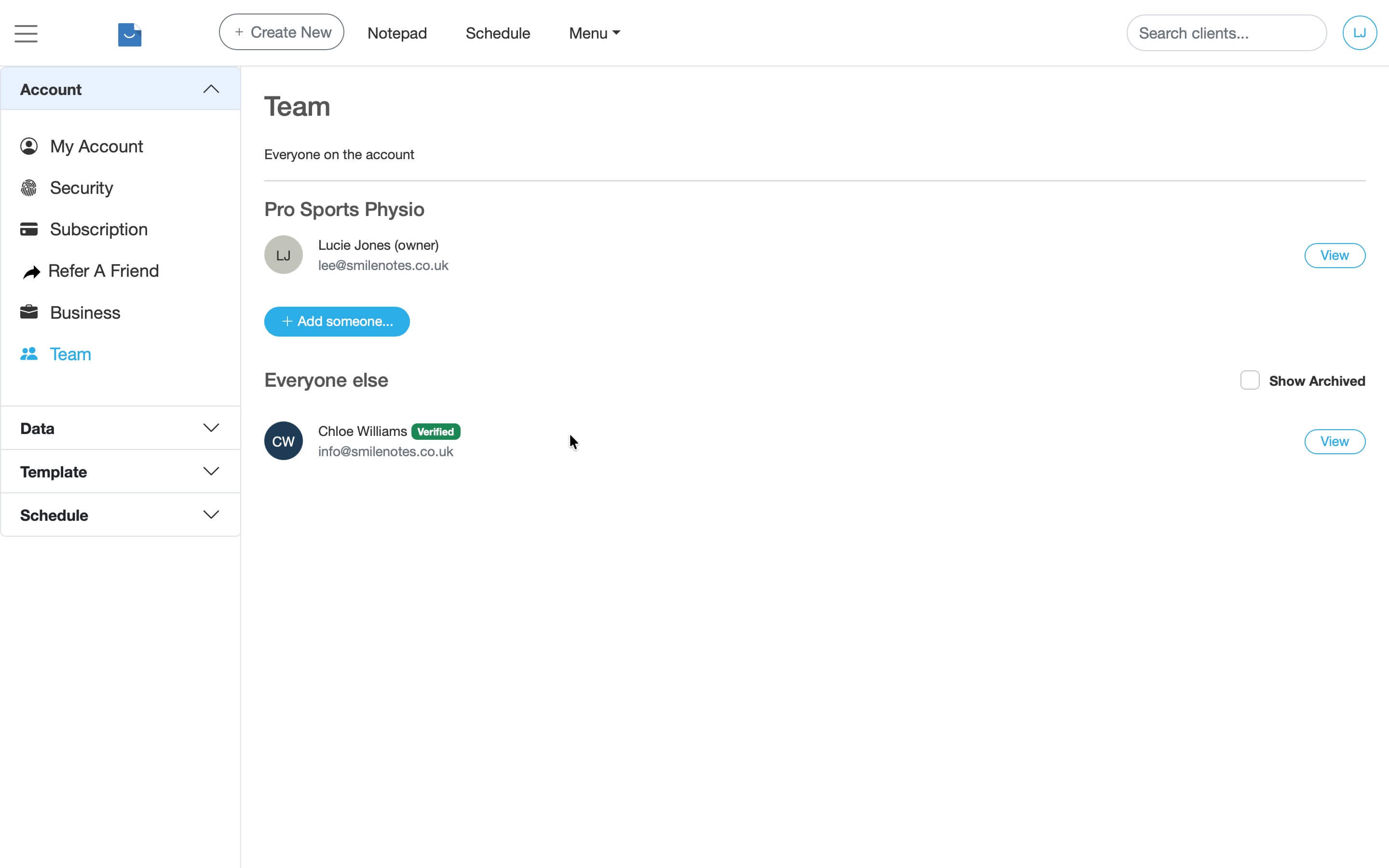
Open the Team section in your account settings.
How to add a team member
- Click Add Someone...
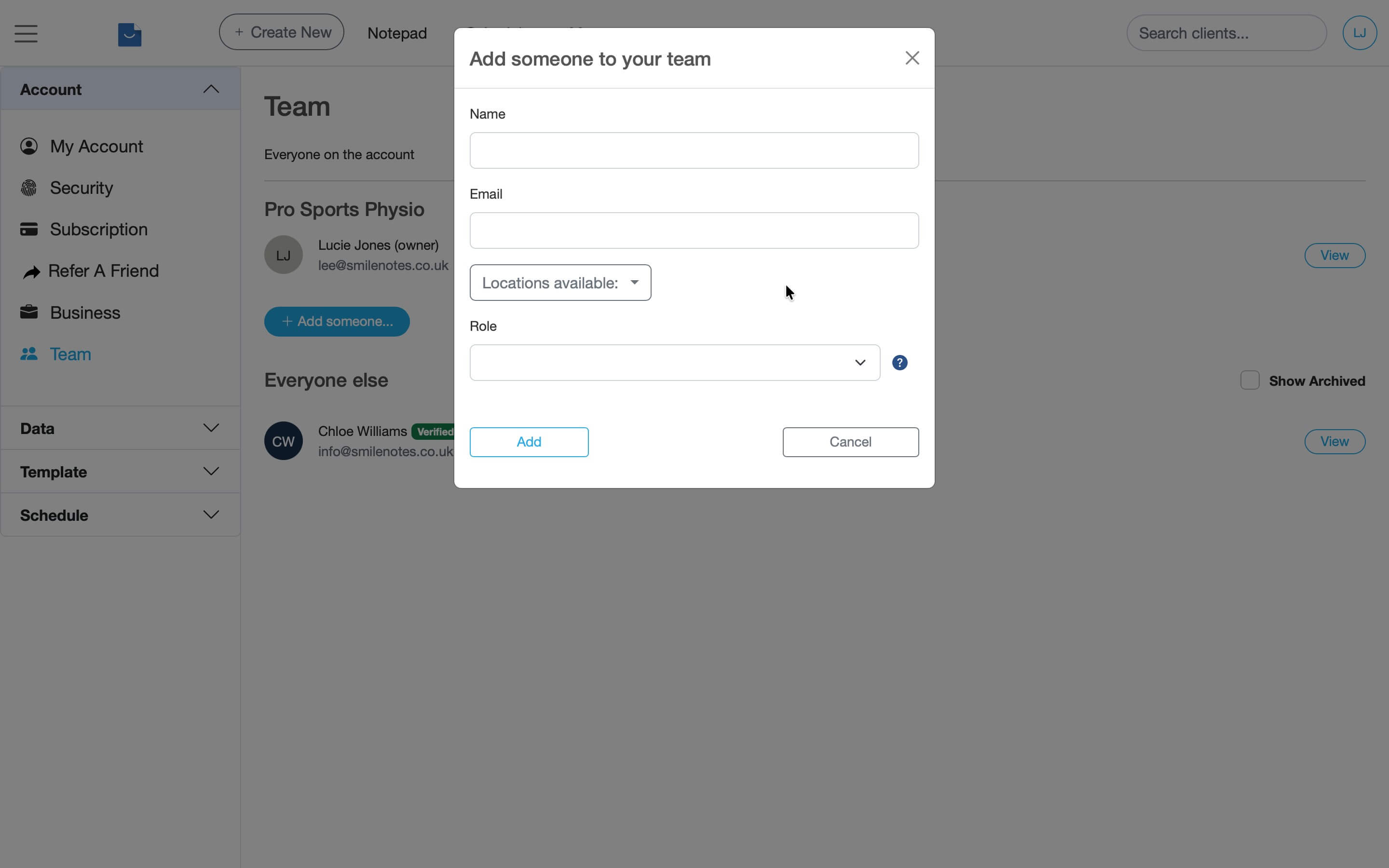
Click "Add someone" to invite a team member. - Enter the team member’s name and email address.
If they already have a Smilenotes account, this must match the email they use to log in.
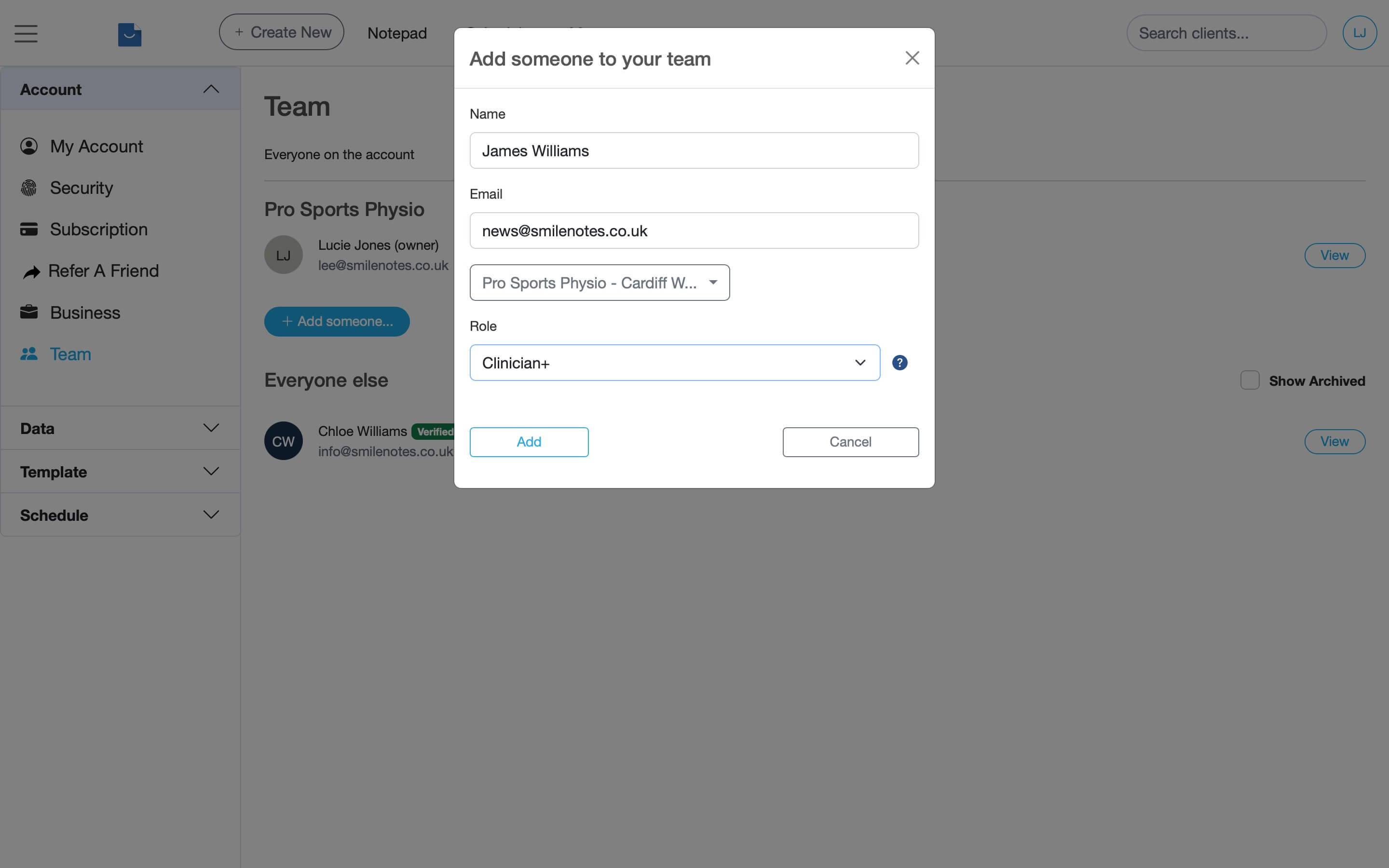
Enter the team member's details before sending the invitation. - Select the practice location(s) the team member works at.
This controls which appointment calendar they can access.
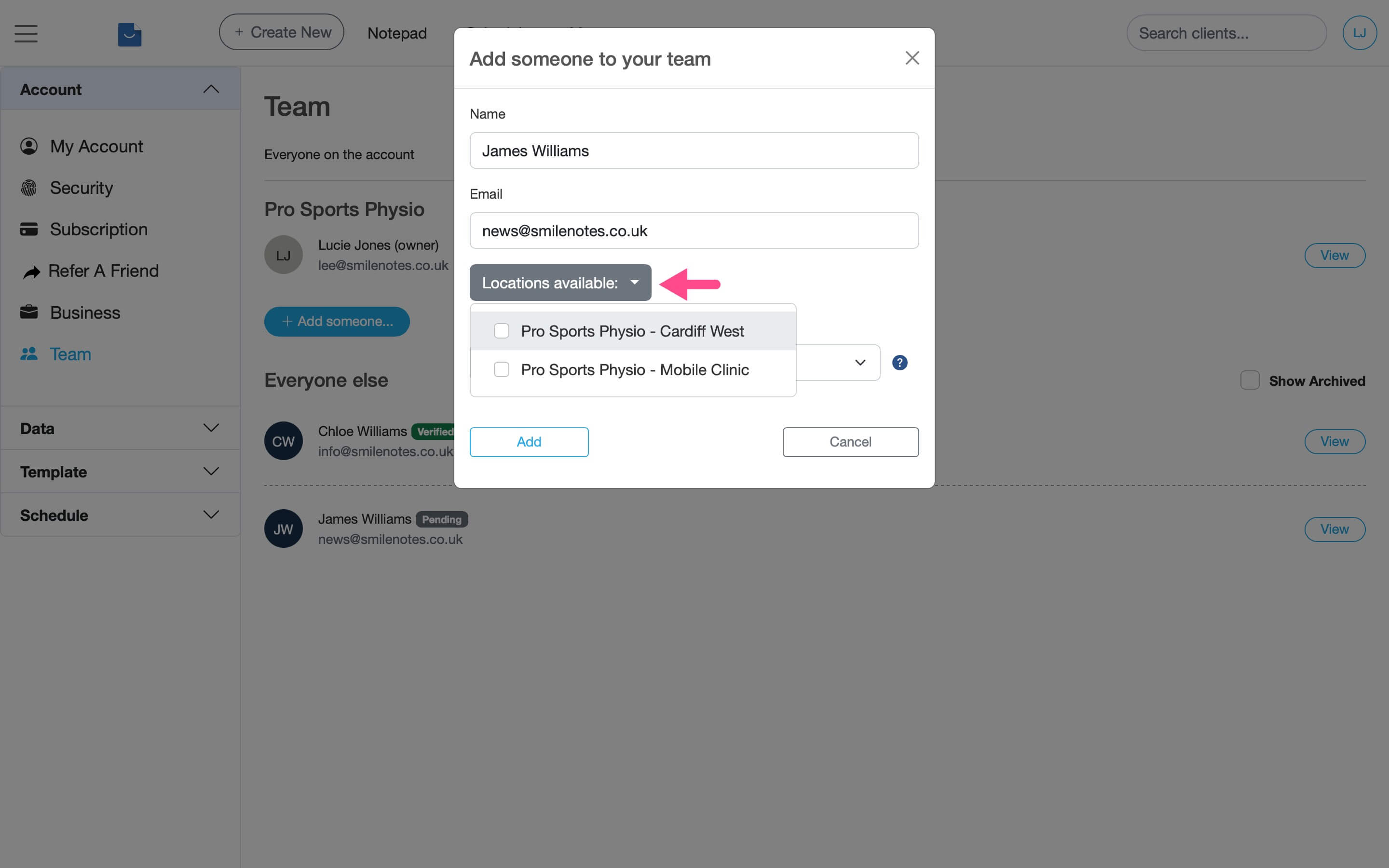
Choose which practice locations the team member can access. - Choose the role that controls what this team member can access.
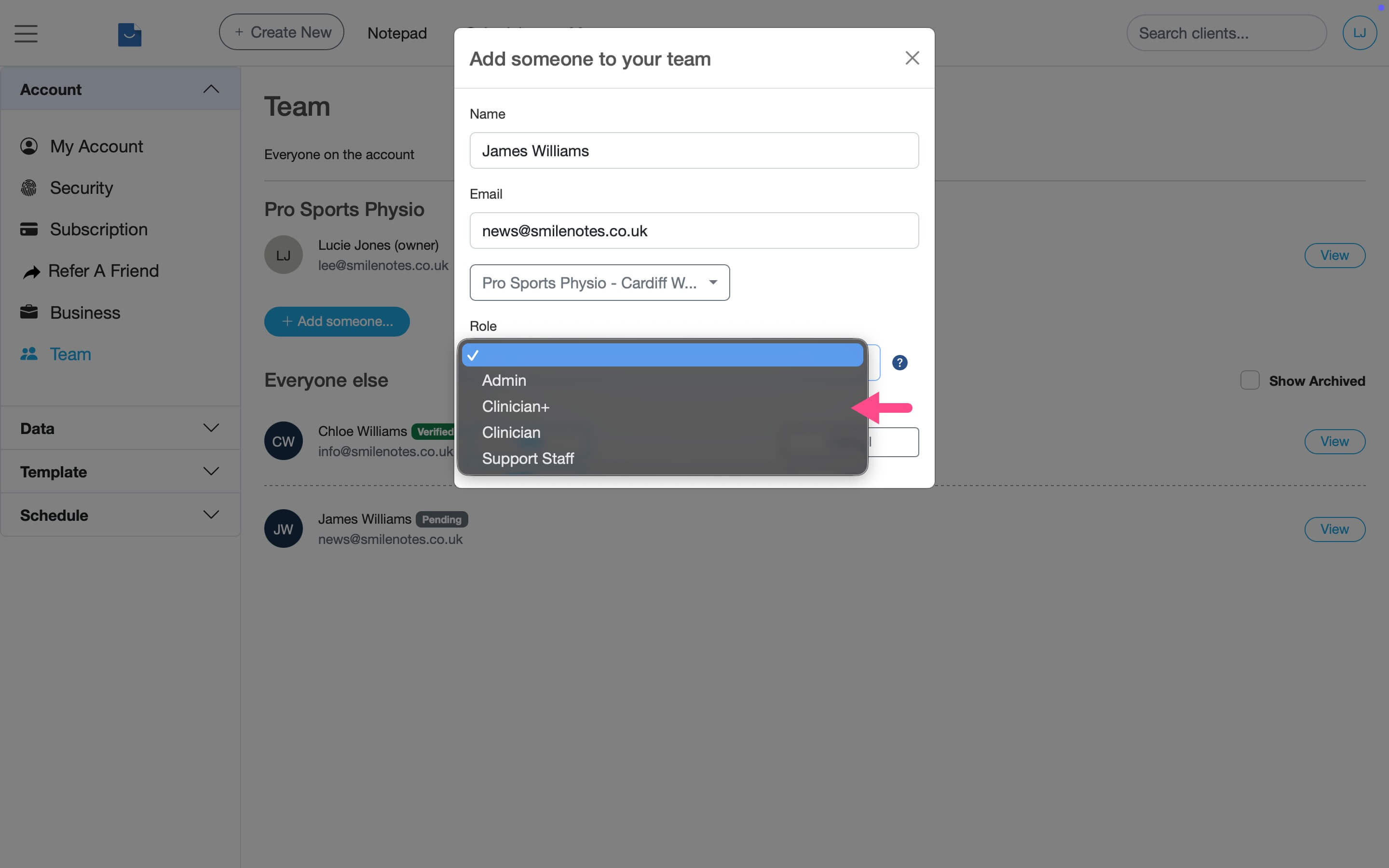
Select the appropriate role for the team member. - The team member will appear with a Pending badge until they accept the invitation.
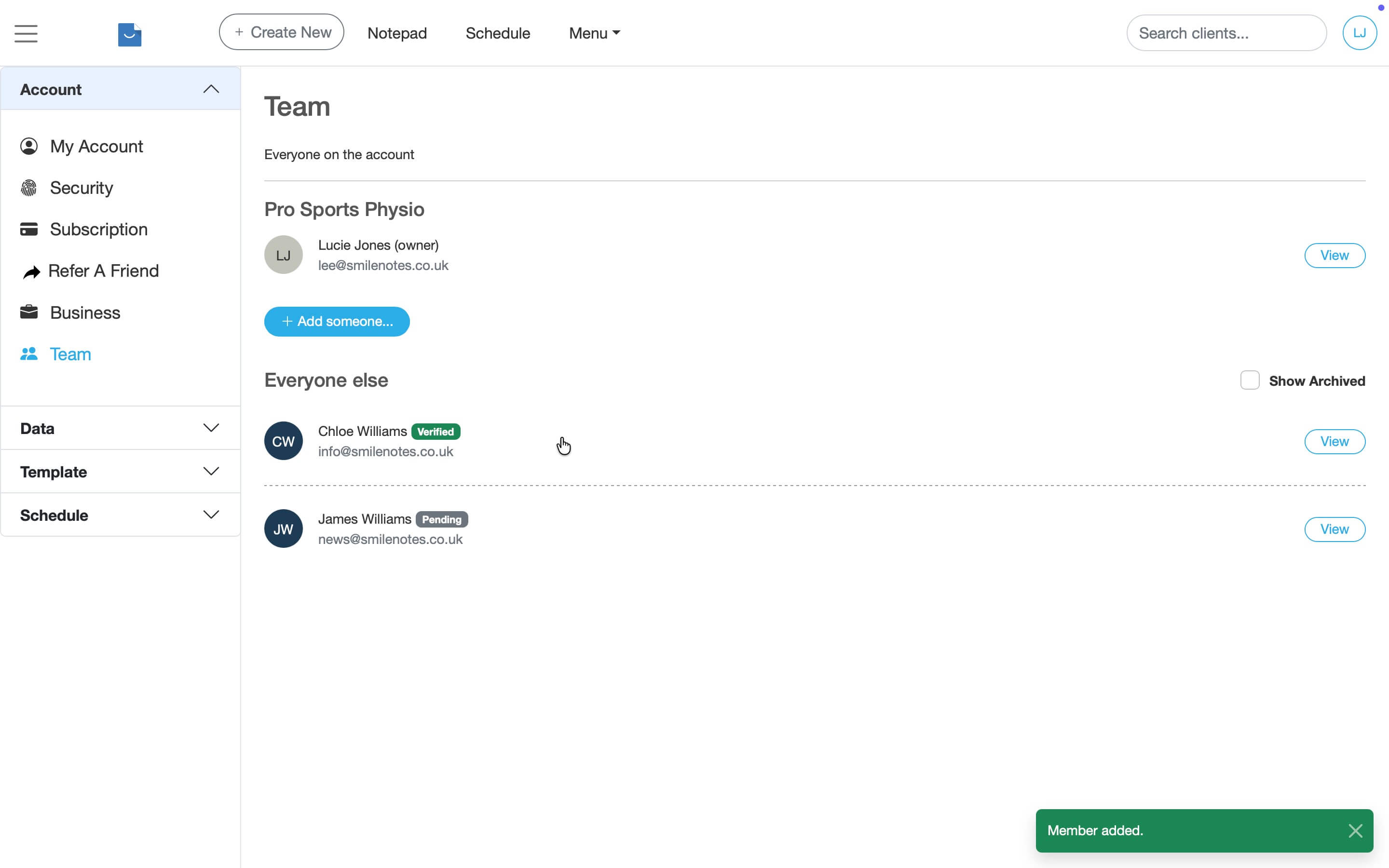
Invited users appear as Pending until they accept the email invitation.
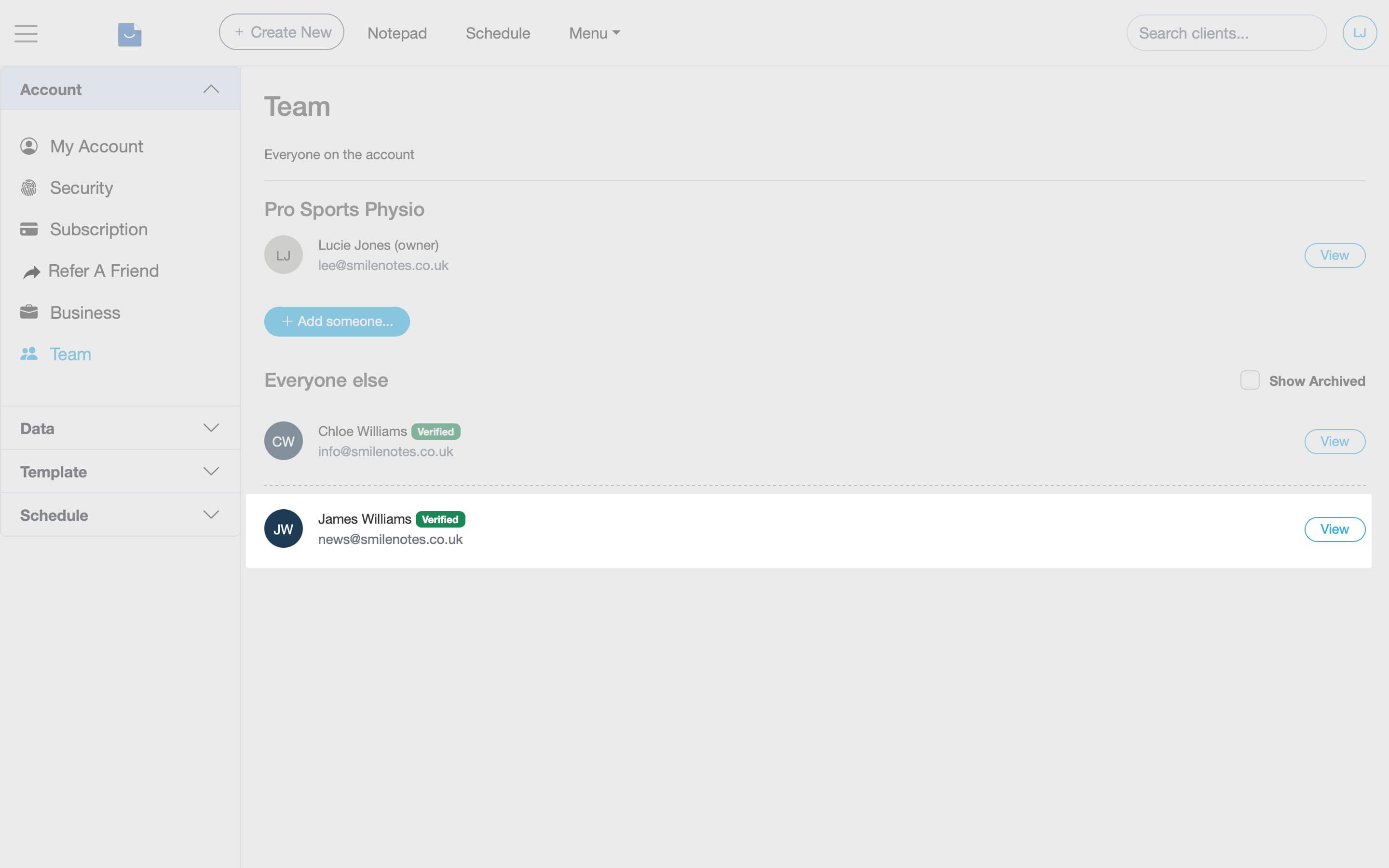
How a team member accepts the invitation
- The user will be sent an email with an invitation to join the team. Simply click on the acceptance button in the email to join the team.
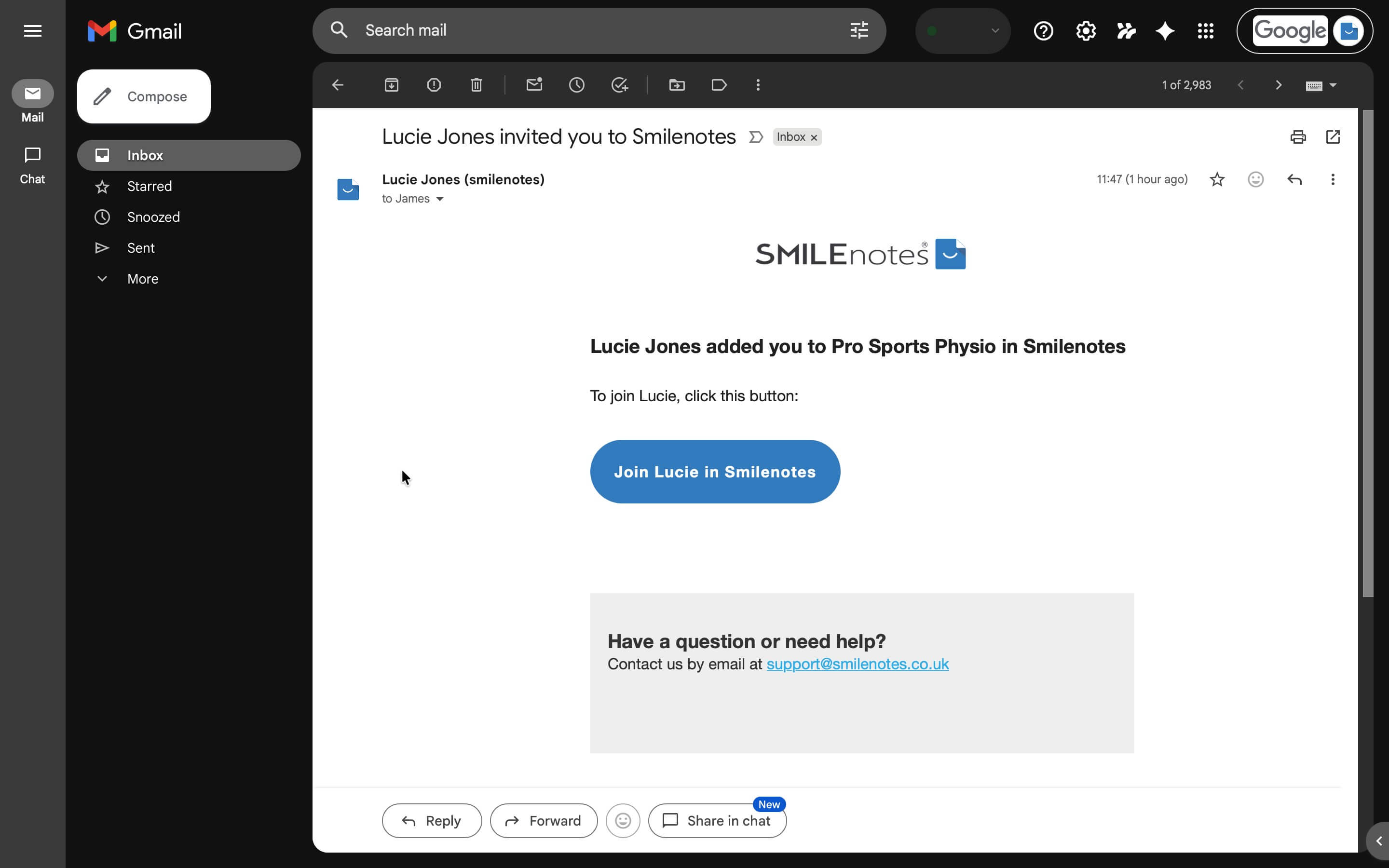
The team member receives an email invitation to join your account. - If they don't have a Smilenotes account they'll be prompted to enter a secure password, then click Save to continue.
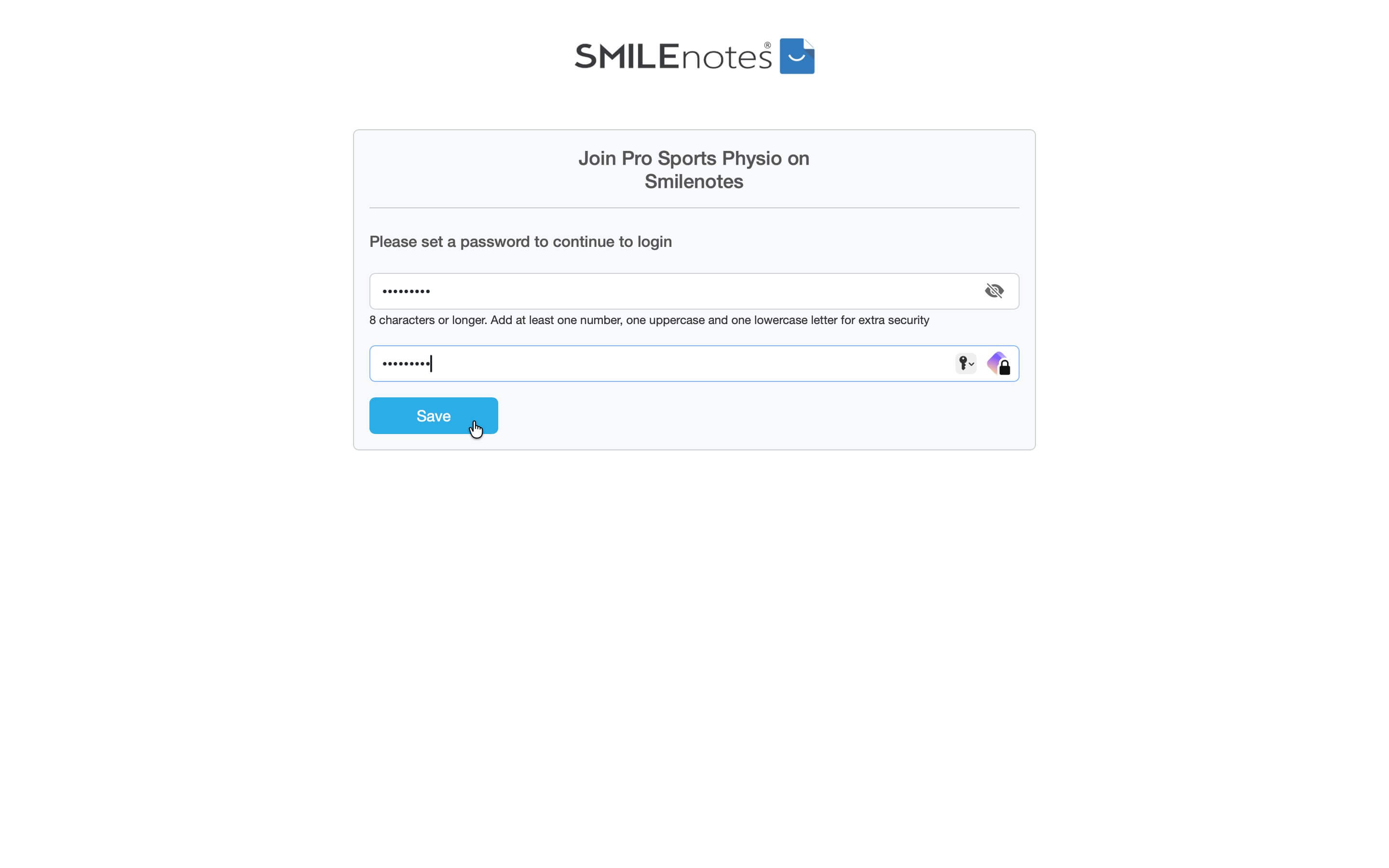
New users create a secure password to finish joining the team. - The user will now be prompted to continue to the login page.
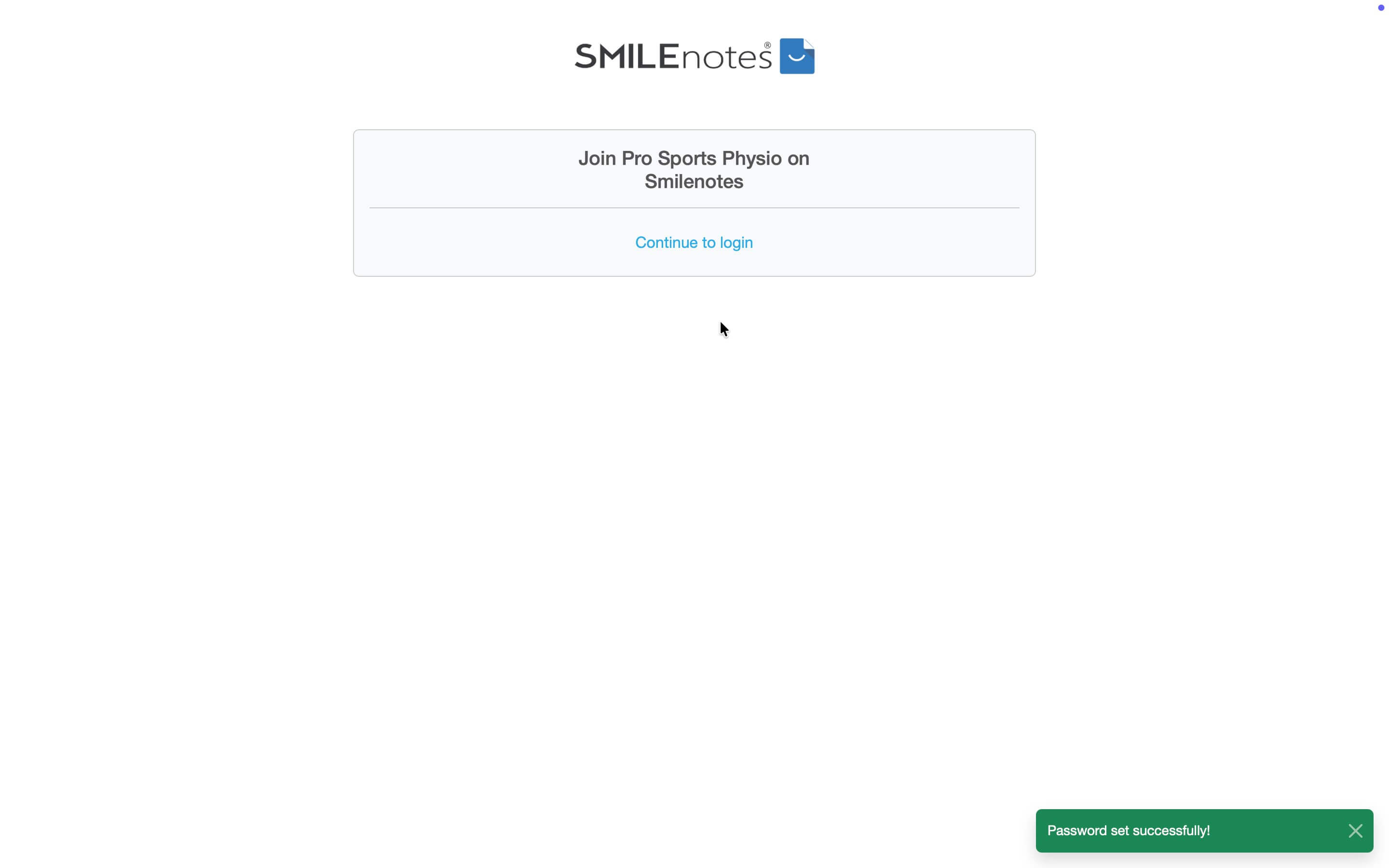
The new team member can now log in to Smilenotes.
How to remove a team member
When you remove a member from your team, they will no longer count to the users on your account.
- Click on the View button next to the team member to edit their profile.
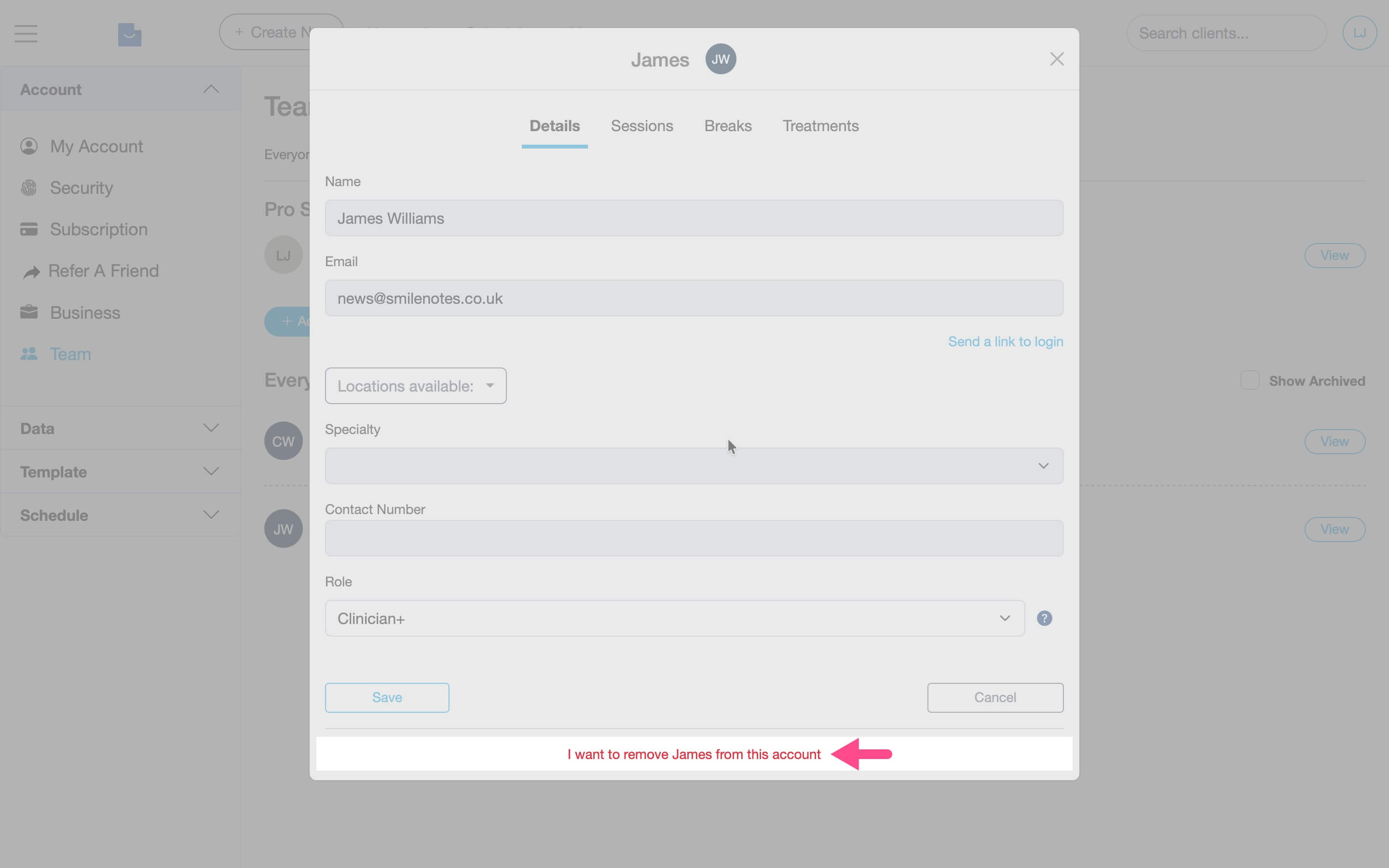
Open the member profile to remove them from your team. - Scroll to the bottom of the profile and click I want to remove [Name] from this account.
Frequently asked questions
Only the account owner or an admin can invite new team members.
Yes. All team members on the account can access the shared client list.
All data such as notes, files and client data belongs to the account owner.
Yes. You can control calendar access by assigning practice locations.
Related articles
Next steps
Updated: 6 March 2026