Copy a collection and send it to another account
Make a copy of one of your template collections and send it to any user on Smilenotes. The recipient will be able to edit or modify this duplicate copy according to their preference.
- Head over to the settings page go to the "Template Settings" tab.
-
Open up the list of your template collections by expanding the accordion, then click on the "Copy Collection" icon next to the collection name.
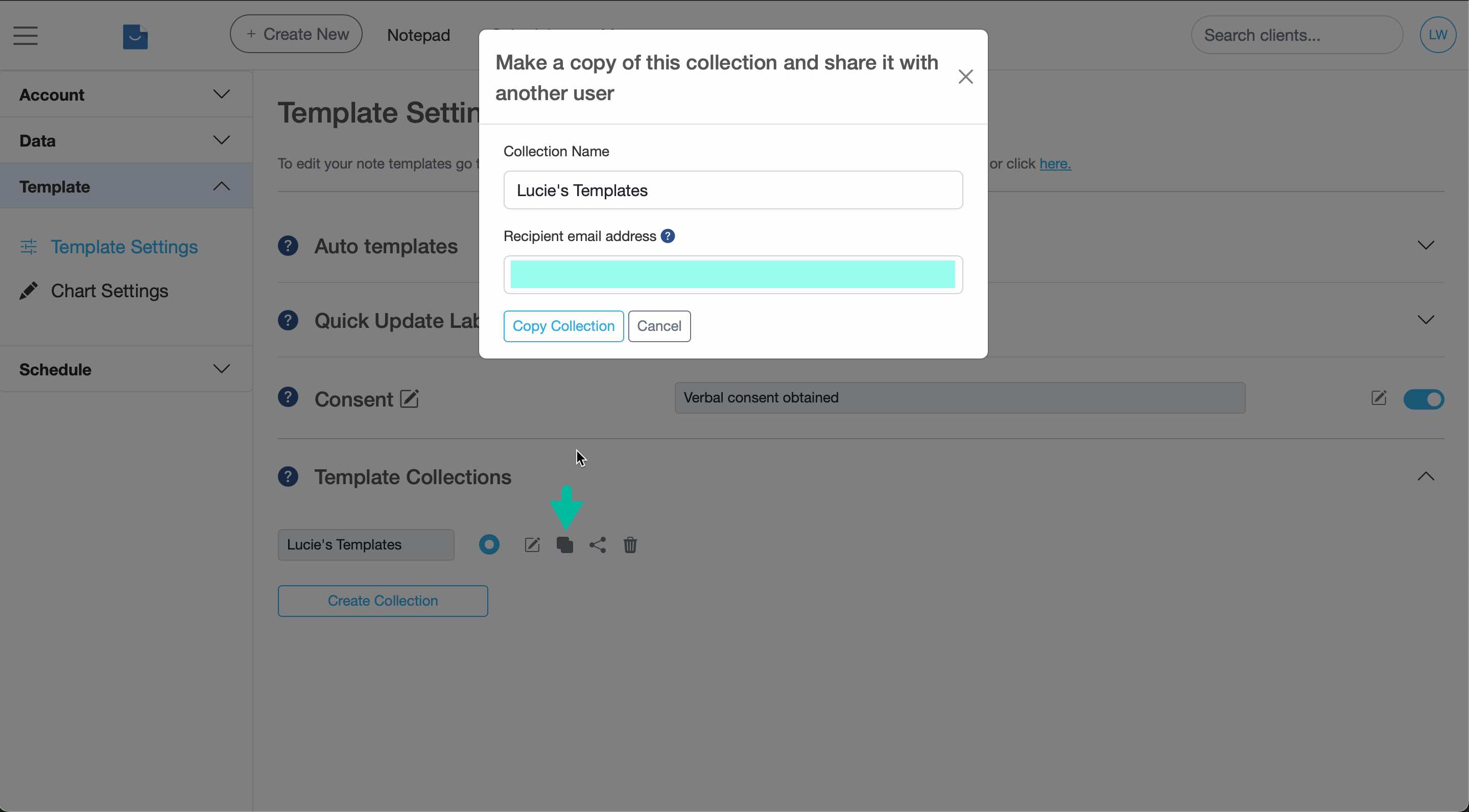
Enter the recipient’s email address and click Copy Collection to send a duplicate. - Enter the recipient email address. (This email address must exactly match the email address the other person uses to log into Smilenotes.)
-
Click Copy Collection to send.
Result
The recipient will receive an email notification to let them know a template collection has been shared with them. The copied collection will immediately show up in their account where they will be able to view, modify and use the collection.
Any changes/modifications to templates made by the recipient won't affect the templates inside your version of the collection.
Frequently asked questions
Sharing with your team creates a live working copy. If you update templates later, your team members will see those changes.
Copying and sending creates an independent duplicate. The recipient can edit their version without affecting yours.
If you want to send a copy to another Smilenotes user, use Copy Collection.
Also make sure you’re in Settings → Template Settings and have expanded the template collections list.
Related articles
Updated: 20 February 2026