Change team member role
- Go to the settings page and select the Team tab.
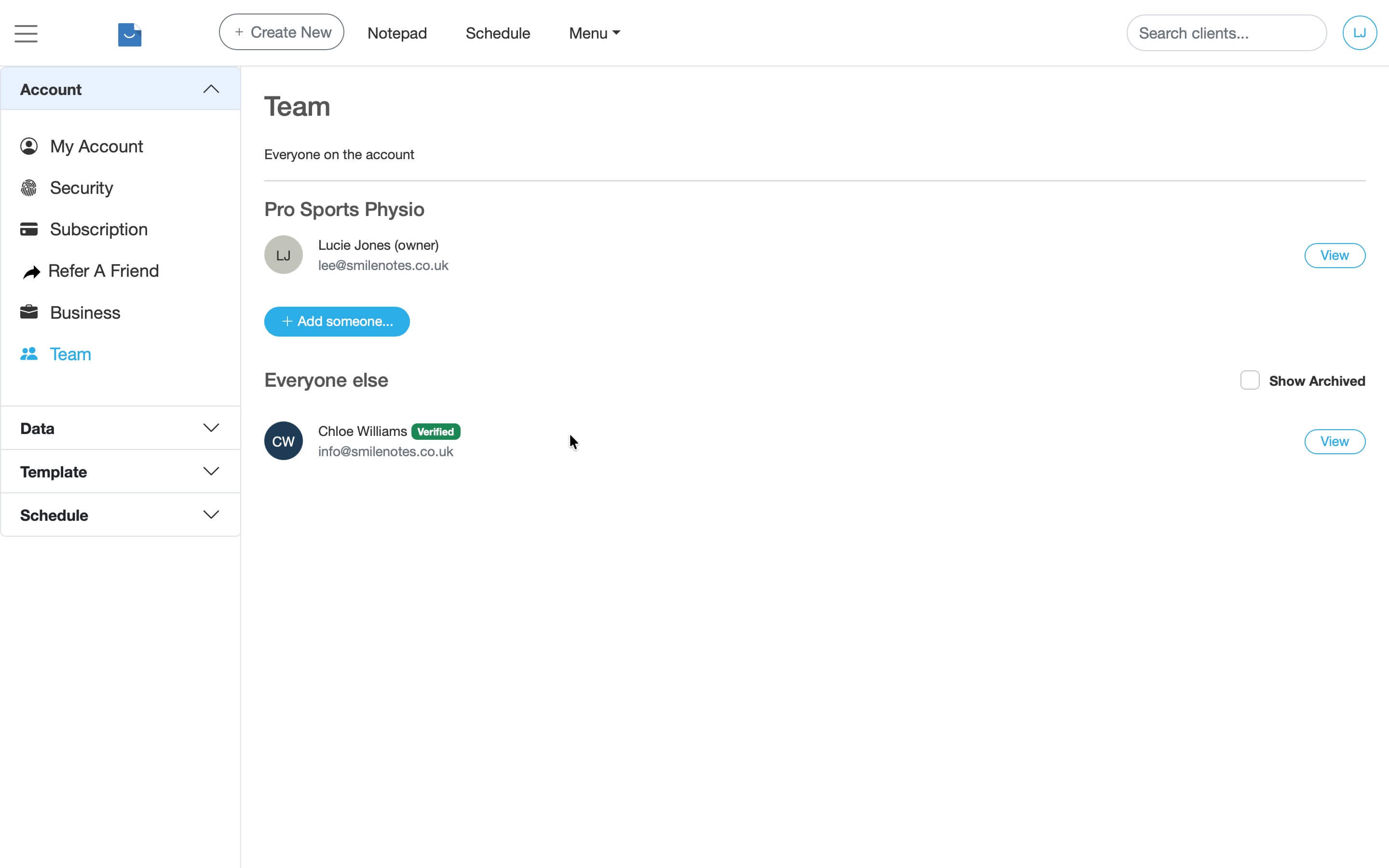
Open Settings → Team to view and manage everyone on your account. - Click View to see the member profile.
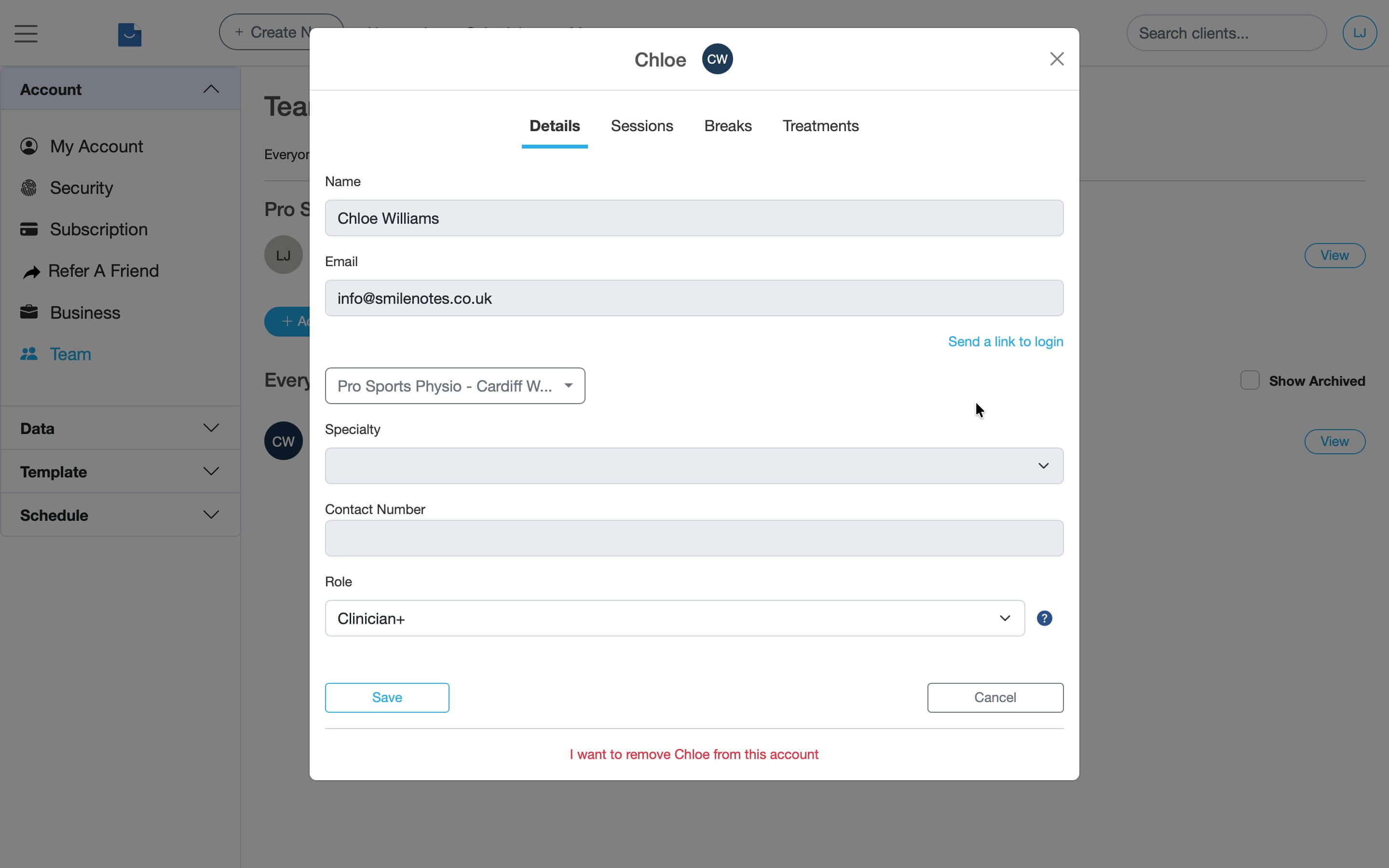
Open a team member profile to view details and change their role. - Use the dropdown to select the user role then Save to update the role. → See the permissions table below for full details.
Team member roles
Click the icon to learn more about specific permissions.
Role
Admin & account owner permissions
Best for a business partner, or manager.
| Area | Access |
|---|
Full access
Limited
Restrictions
More info
Frequently asked questions
- Admin / Account Owner – Can view all notes.
- Clinician+ – Can view all notes.
- Clinician – Can view their own notes and notes written by users with the Clinician role.
- Support Staff – Cannot view clinical notes.
This structure helps maintain privacy while allowing appropriate clinical collaboration.
Only the Account Owner or users with the Admin role can change team member roles.
To update a role:
- Go to Settings → Team
- Open the team member profile
- Select the new role
- Click Save
Use Support Staff.
This role allows access to:
- The appointment diary
- Client profiles
- File uploads
It does not allow access to clinical notes, subscription settings, or user management — helping protect sensitive information.
No.
Clinicians and Support Staff cannot delete:
- Clients older than 24 hours
- Files older than 24 hours
- Past clinical notes
Only Admins have full deletion permissions.
Related articles
Next steps if you’re managing staff:
Updated: 3 March 2026