How notes move through Smilenotes
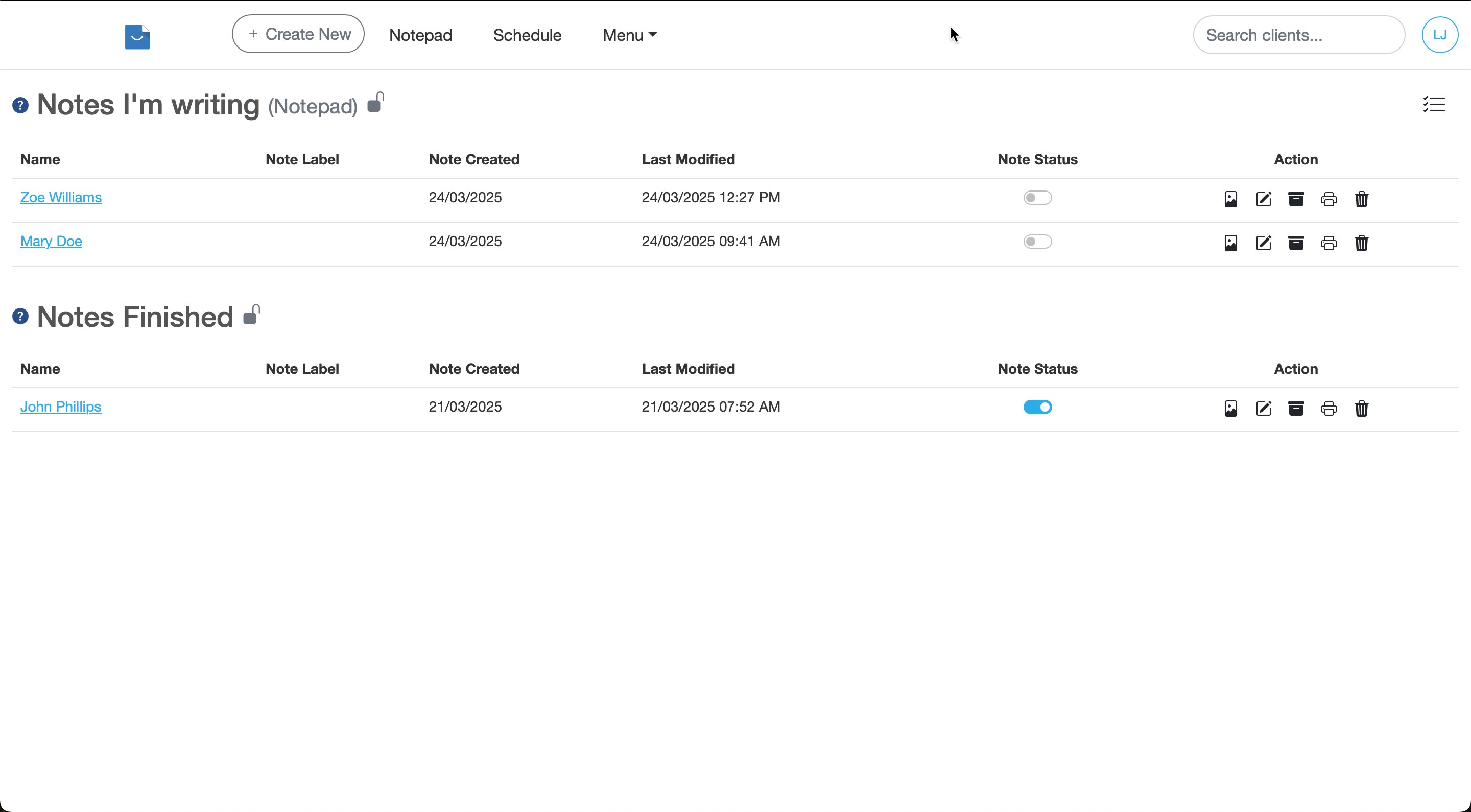
Notes usually move through three stages:
- Notes I’m writing – notes you are still editing in the Notepad
- Notes Finished – notes you have marked as complete, either from the Notepad or from the Draft Notes page
- Archived notes – locked notes that can still be viewed but can no longer be edited
Notes I’m writing
The Notes I’m writing section shows notes that are still active in your Notepad.
These notes are still editable, which means you can continue writing, updating or reviewing them before you finish them.
Each note in this section appears as a note tab in the Notepad.
Notes Finished
The Notes Finished section shows notes you have marked as complete.
These notes are no longer shown as active note tabs in the Notepad, but they remain available until they are archived.
You can move a note into this section by changing its Note Status on the Draft Notes page or by clicking the checkbox on the note tab in the Notepad.
Archived notes
Archived notes are locked notes.
Once a note has been archived, it becomes read-only and can no longer be edited.
This helps protect the final version of a clinical record from accidental changes later.
Smilenotes manages notes in the Notes Finished section according to your Notes Management settings.
Change the status of a note
In the Notepad
Click the check box on the note tab to mark it as finished and move it into Notes Finished.
On the Draft Notes Page
To move a note out of Notes I’m writing and into Notes Finished, use the toggle switch in the Note Status column.
This is useful when you have finished writing the note and no longer need it open in the Notepad.
Archive a note manually
Notes in the Notes Finished section can be archived automatically based on your Notes Management settings.
If you want to archive a note straight away, use the Archive button next to the note or choose Archive from the Notepad menu.
Once archived, the note becomes read-only and can no longer be edited.
Why a note may no longer be editable
If you can no longer edit a note, it has usually already been archived.
Archived notes are locked to protect the final record.
If you still need to make changes, check whether the note is still in Notes I’m writing or Notes Finished before it becomes archived.
Frequently asked questions
Draft notes are notes you are still working on in the Notepad. Finished notes have been marked as complete and are no longer shown as active note tabs. Archived notes are locked and can no longer be edited.
Yes. A note in Notes Finished is no longer active in the Notepad, but it is not permanently locked until it is archived. You can move it back by using the Note Status toggle.
The note moves from Notes I’m writing to Notes Finished. It is no longer shown as an active note tab in the Notepad.
Smilenotes manages notes in the Notes Finished section according to your Notes Management settings.
Depending on your preference, finished notes can be archived automatically at the end of the day, limited to your most recent finished notes, or permanently deleted.
You can control this behaviour by going to the Settings page, selecting the Data tab, and choosing your preferred option in the Notes Management section.
Archived notes are locked to preserve the final version of the record. Once archived, they become read-only.
Use the Archive button next to the note if you want to archive it straight away. You can also do this from the options menu in the Notepad.
The Note Status toggle lets you move a note between Notes I’m writing and Notes Finished. Notes marked as still being written appear in the Notepad.
Once marked as finished, the note moves from Notes I’m writing to Notes Finished. You can still find it on the Draft Notes page.
After it has been archived, you can find it in your archived notes or in the notes section of the client profile.
A note will no longer appear as an active note tab once it has been marked as finished. If it has also been archived, it becomes read-only and is stored with your archived notes.
If the note was recently marked as finished, you can find it on the Draft Notes page in Notes Finished.
Related articles
You may also find these helpful:
Updated: 5 March 2026