How to find archived notes
Use the Archived Notes page to find older locked notes.
- Open the Archived Notes page from the Menu dropdown in the navigation.
-
Use the search box to find notes by client name.
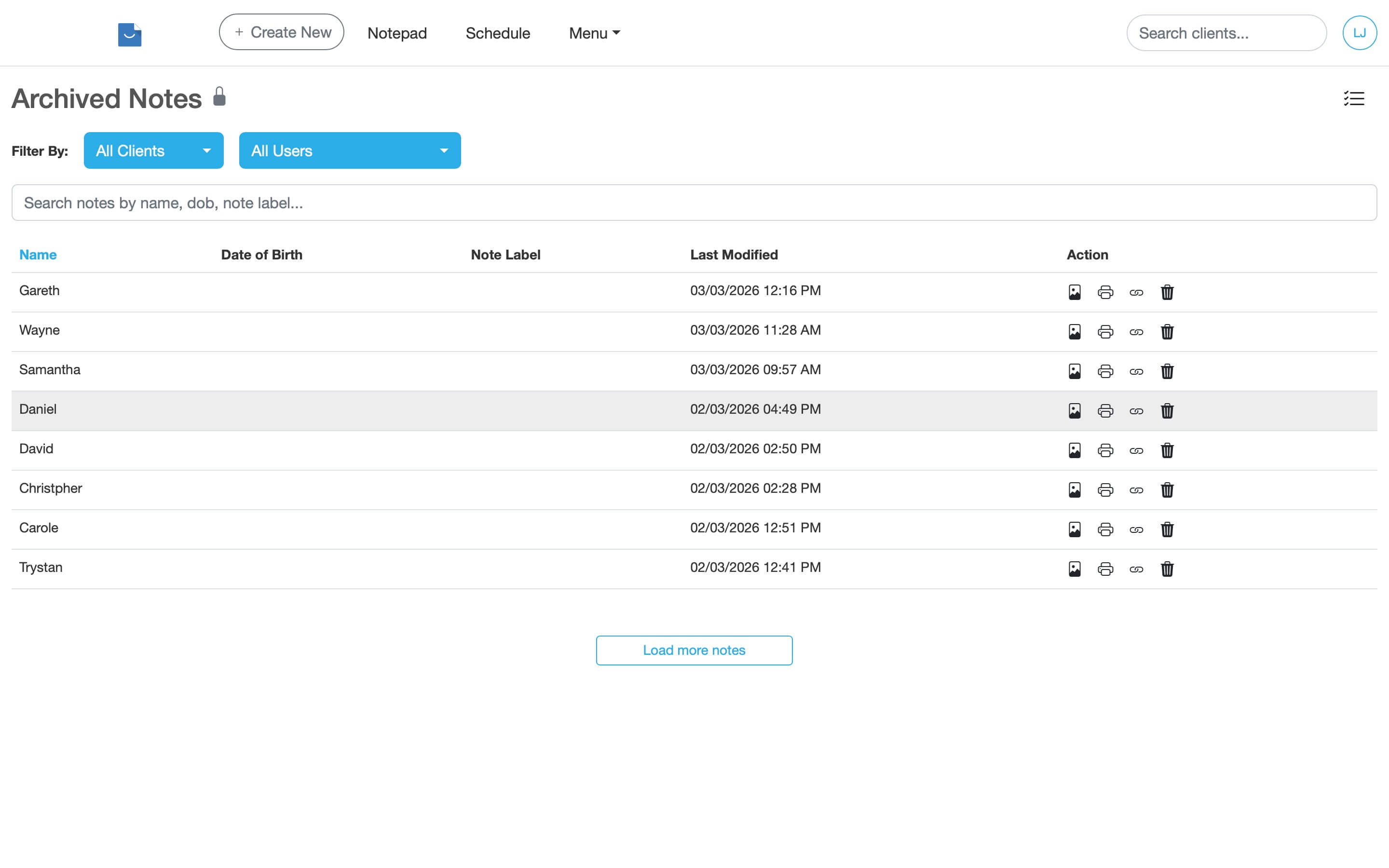
The Archived Notes page lets you search, filter and open older locked notes. -
Use the filter dropdowns to narrow the list if needed.
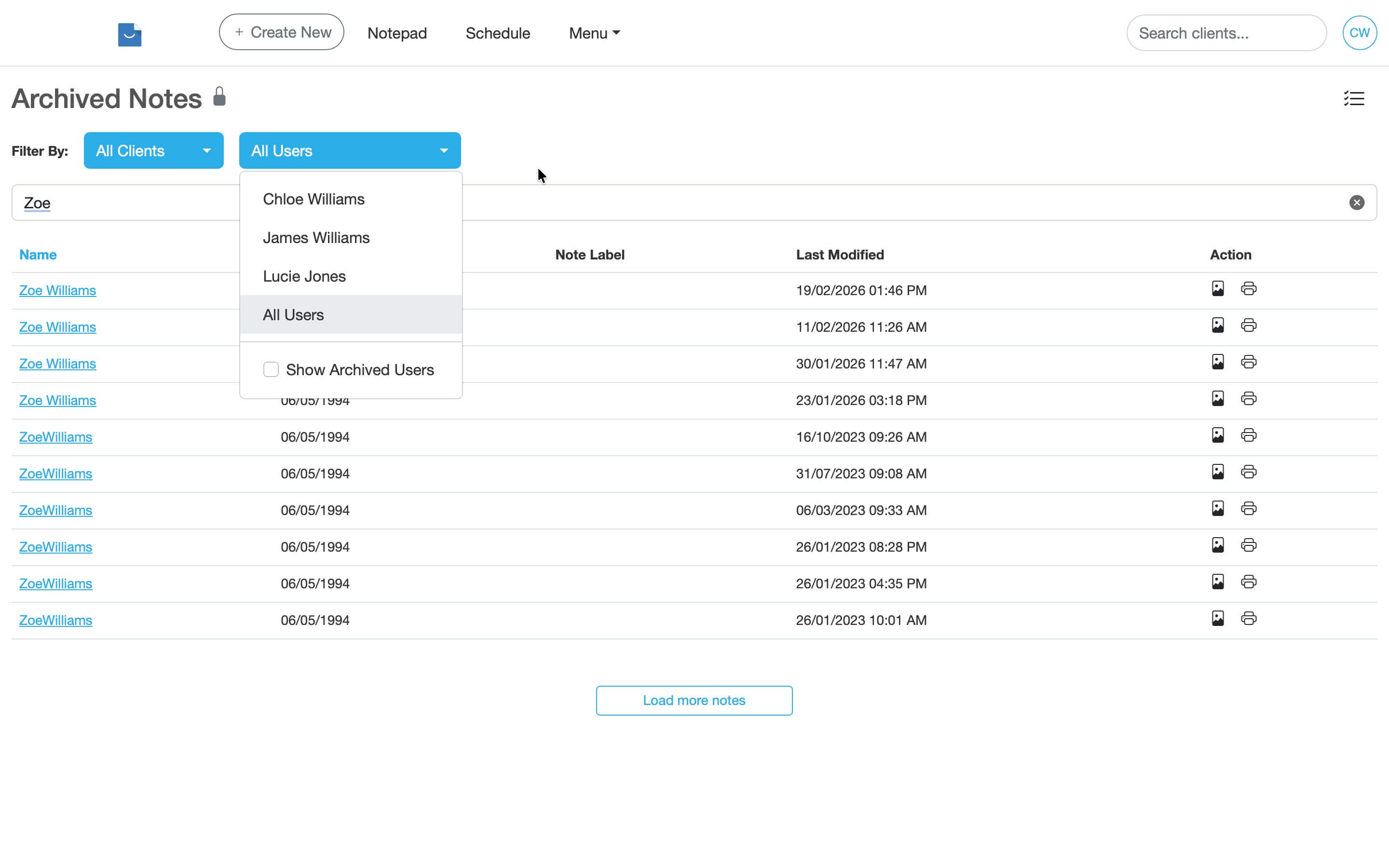
Use filters to narrow the archived notes list more quickly. - Click the preview icon in the Action column to view the note, or click the client name to open the client profile.
What you can do with archived notes
- Open and review the note
- Search archived notes by client name
- Use filters to narrow the list
- Print the archived note
- Review older clinical history
Archived notes FAQ
An archived note is a saved treatment note that has been locked to prevent further editing. The note remains available for viewing and printing as part of the clinical record.
Archived notes are read-only by design. Once a note has been finalised and archived, it is locked so the saved record cannot be changed.
No. Archiving does not delete the note. The note is still stored in Smilenotes and can still be viewed later.
Yes. Archived notes can still be opened and printed. Locking the note only prevents editing.
Use the search box on the Archived Notes page to search by client name, then use the filter dropdown if you need to narrow the results further.
Archived notes are designed to remain locked as part of the saved clinical record. If you need to add new information, create a new note instead of changing the archived one.
The lock icon shows that the note has been archived and is no longer editable.
Related articles
You may also find these helpful:
Updated: 5 March 2026