When notification emails are sent
Appointment notification emails can be sent automatically when an appointment is:
- Booked
- Changed
- Cancelled
You can switch these on or off depending on how you communicate with clients.
Notification emails are sent after approx 5 mins of booking/cancelling the appointment.
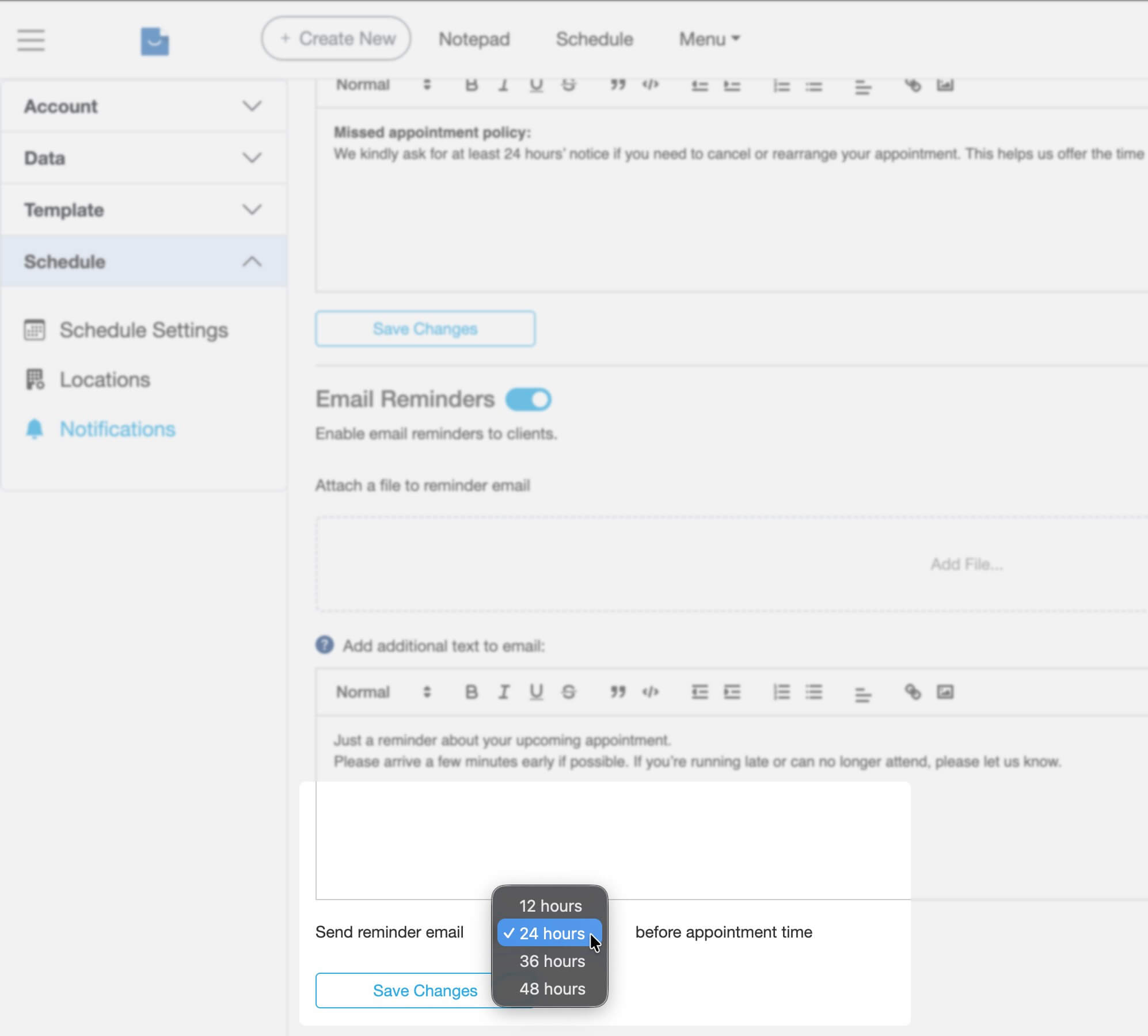
Appointment reminder emails
Reminder emails help clients remember their upcoming appointment.
They can be sent:
- 12 hours before
- 24 hours before
- 36 hours before
- 48 hours before the appointment
Use reminders to reduce DNA / no-shows and set clear expectations for cancellations.
How to customise emails
You can personalise notification and reminder emails by:
- Adding your own message
- Including helpful web links
- Attaching files such as consent forms or policies
Open email settings in Smilenotes
- Go to Settings
- Select Schedule
- Choose Notifications
- Make sure notifications and reminders are switched on
Once enabled, you can edit the email content using the editor.
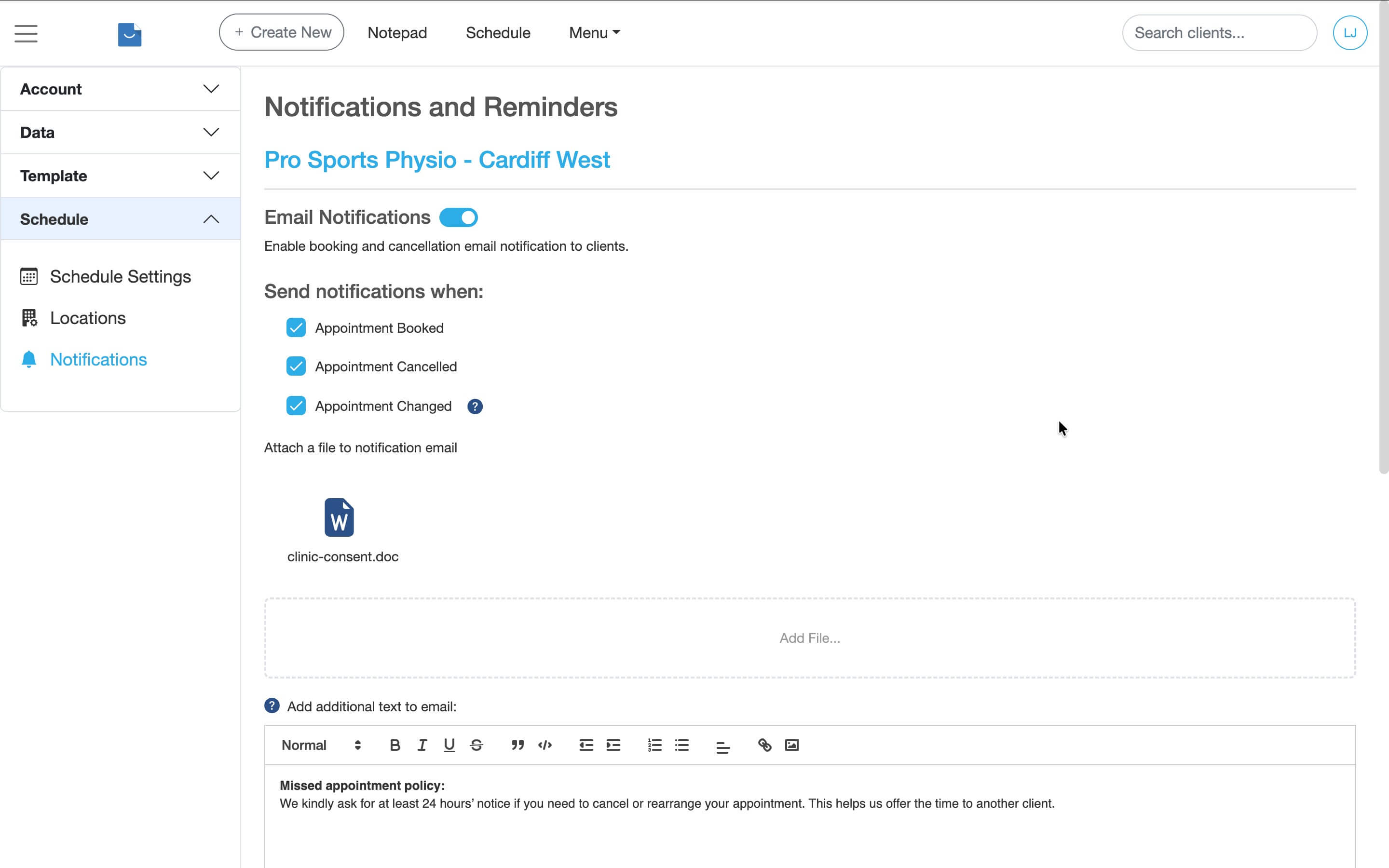
Example email text:
You can add custom text that appears at the bottom of your automated emails.
Here are examples commonly used by practices:
Attach files to emails
You can include documents that will be sent automatically with each email, such as:
- Consent forms
- Terms and conditions
- Patient information leaflets
To attach a file:
- Click Add file (or drag and drop a file into the upload area)
- Click Upload
The file will now be included in all automated emails of that type.
Related articles
Next steps if you’re setting up your appointment calendar:
Updated: 12 March 2026