What is a workspace?
A workspace is a separate area within Smilenotes with its own clients, notes, files, templates, and team members.
Each workspace has its own:
- Clients
- Treatment notes
- Files
- Note templates
- Team members
Data is not shared between workspaces.
For example, if you create a client in one workspace, it will not appear in another workspace.
Personal workspace
Your personal workspace is created automatically when you sign up.
It is typically used if you are:
- A solo practitioner
- Trialling Smilenotes
Personal workspaces usually start with a 30-day free trial.
Team workspace
A team workspace is owned by an account owner who manages the subscription.
Team members are invited by the account owner and can then access the shared workspace.
Inside a team workspace, all members can view the same:
- Clients
- Treatment notes
- Client records
This allows clinics and teams to work together in the same shared workspace.
Choosing the correct workspace
When signing in, you may see a screen similar to this:
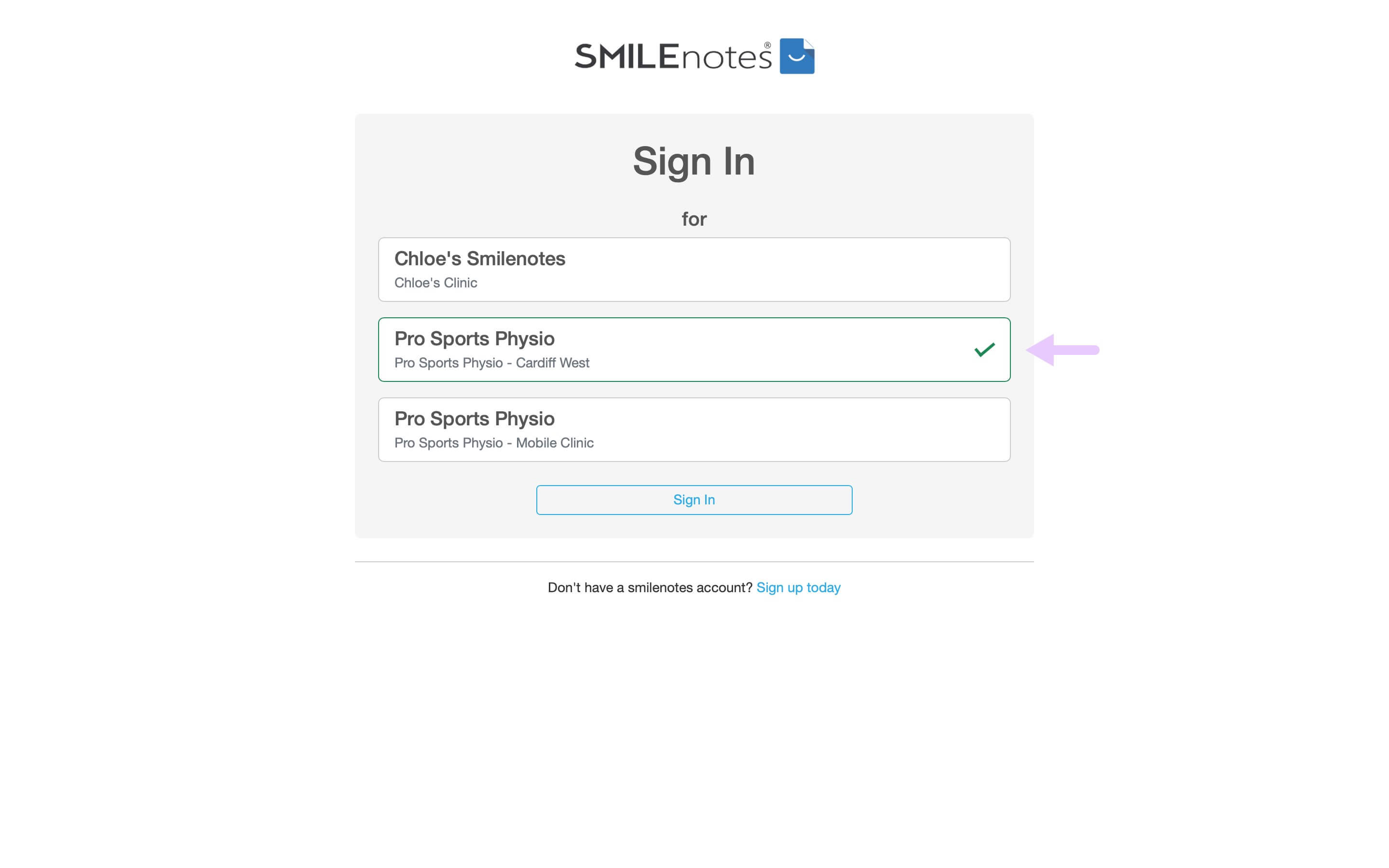
Choose the workspace that belongs to your clinic or team.
For example: Pro Sports Physio.
This is the team workspace where your clinic’s clients and notes are stored.
If you choose a personal workspace instead, such as Chloe’s Smilenotes, you may not see the clients or notes you expect.
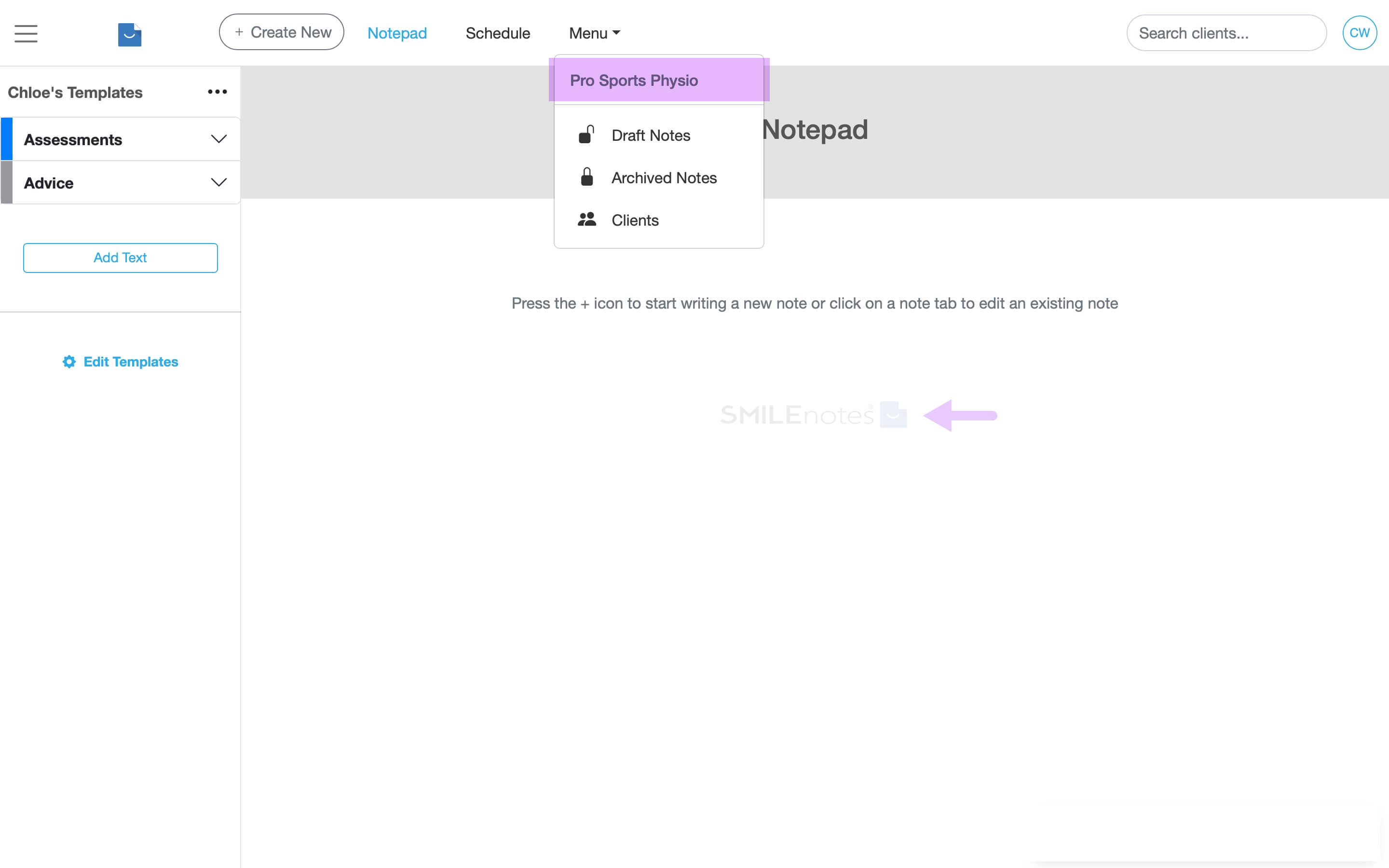
Once you are signed in, you can check which workspace is open from the navigation menu.
If the account owner has added a business logo, it may also appear in the centre of the Notepad. This can help you confirm that you are in the correct workspace.
Why clients or notes may appear missing
If you cannot see a client or treatment note, it may be because you are logged into a different workspace or you do not have the correct permissions to view certain notes.
Learn more about team member rolesWhen personal workspaces expire
Personal workspaces created during sign-up normally include a 30-day free trial.
If the trial expires, you may no longer be able to access that personal workspace.
However, if you are part of a team workspace with an active subscription, you will still be able to sign in and use the team workspace.
Troubleshooting
If clients or treatment notes appear missing after signing in, it is usually because you are in the wrong workspace.
Each Smilenotes workspace stores its own data, so:
- Clients created in one workspace will not appear in another.
- Treatment notes are only visible in the workspace where they were created.
If you belong to a team workspace, choose that workspace when signing in rather than your personal workspace. Then sign in again and check whether the missing records appear.
For example:
- Pro Sports Physio → Team workspace
- Chloe's Smilenotes → Personal workspace
If you sign in to the personal workspace instead, you may not see the clients or notes created by your team.
Simply sign out and select the correct workspace when signing in again.
You may be signed in with a different email address from the one that was invited. Check the following:
- the account owner sent the invite to the correct email address.
- you are signing in with that same email address.
- the invite email has not gone to your spam or junk folder.
If needed, sign out and sign back in using the invited email address.
Yes. As long as the team workspace subscription is active, you can continue working by choosing the team workspace when you sign in.
Check that:
- you are both in the same workspace.
- you are looking in the same place, such as the client list or notes list.
- your role permissions allow access to that information.
It is not currently possible to move clients or notes directly between workspaces. However, you may be able to export the data and then add it to the correct workspace.
Use the login email address that was invited to the team workspace.
Related articles
Next steps
Updated: 5 March 2026
Need More Help?
Connect with our team