Open the client profile
You can access a client profile in several ways:
- From the appointment diary – click the appointment, then select the person icon from the right side panel
- From the navigation search –search for the client and click View
- From the client page – locate the client and click their name
- From the Notepad – click the person icon to open the linked client profile
Upload a file
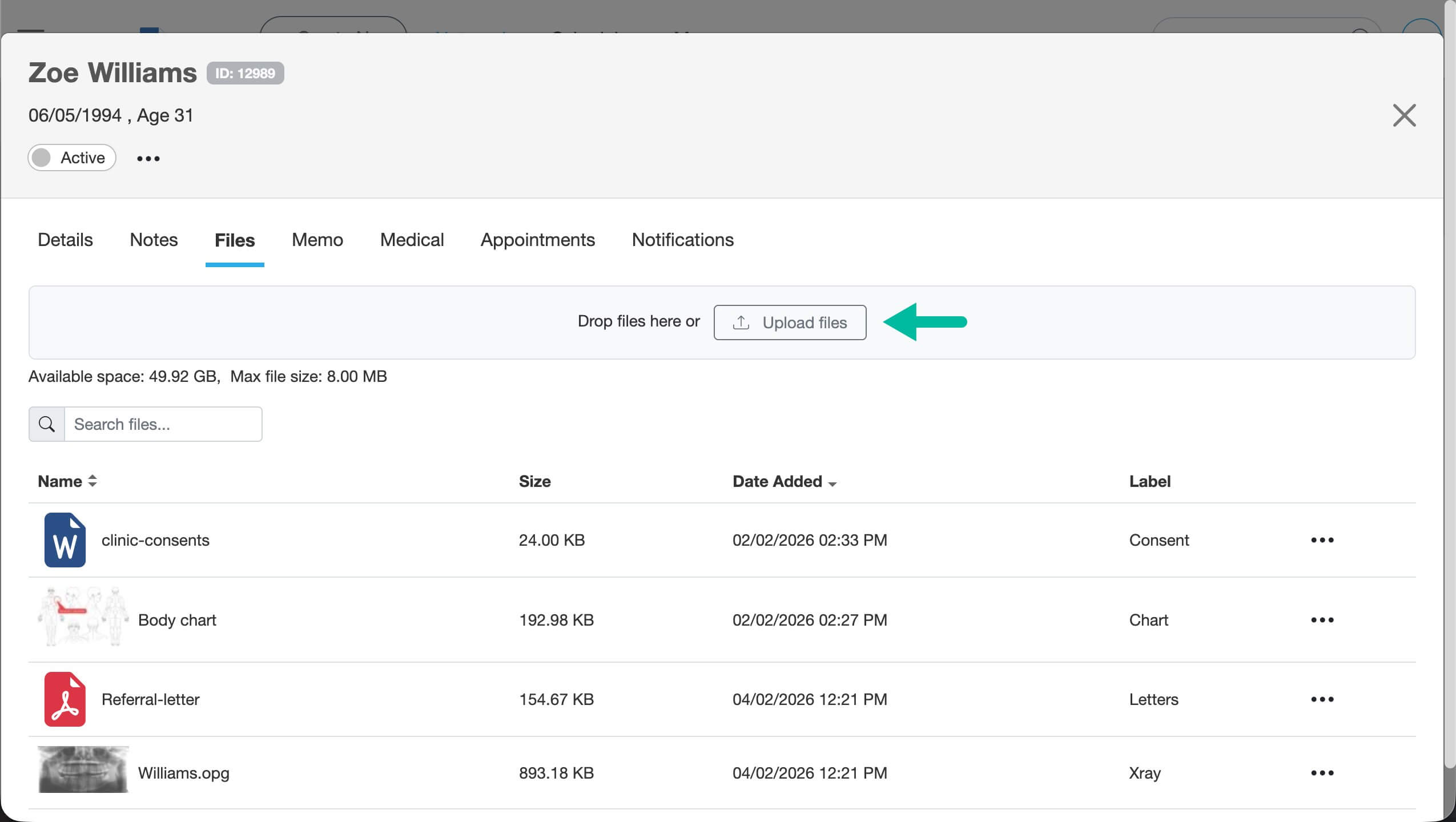
- Select the Files tab
- Click Upload files -or simply drag and drop a file into the grey area
- Choose the file from your device and click Upload
After uploading you can:
- Add a label to help with organisation and searching
- Rename the file
File storage guidance
Smilenotes is designed for secure clinical records and patient-facing documents. Following the guidance below helps keep your account fast, reliable, and compliant — without running into storage limits.
What Smilenotes storage is for
- Patient consent forms
- Referral letters and reports (PDF)
- Clinically relevant photos
- Supporting documents attached to patient records
These files are encrypted, backed up, and stored securely in UK/EU data centres.
What Smilenotes storage is not for
To keep storage efficient and affordable for everyone, Smilenotes is not designed for:
- Raw device exports (e.g. imaging system dumps)
- Original camera or scanner files at full resolution
- Large video recordings
- ZIP archives or backups from other systems
File size and format guidance
Recommended formats
- PDF – for documents, referrals, letters
- JPEG – for photos
- PNG – where transparency is required
Typical file sizes
- PDF letter or report: 0.5–2 MB
- Scanned form (150–200 DPI): 1–3 MB
- Phone photo (optimised): 1–3 MB
If a file is significantly larger than this, it’s usually safe to reduce its size before uploading.
Supported file types
Smilenotes supports the following file formats:
- Video files: .mp4, .wmv, .mov
- Image files: .jpeg, .jpg, .png
- Word files: .docx, .doc
- Document files: .pdf
- Excel files: .xls, .xlsx
- Audio files: .mp3
Maximum file size: 8MB.
How storage limits work
- Clinical notes and text entries are unlimited and do not count towards storage.
- Storage limits apply only to uploaded files (documents, photos, media).
- You’ll receive advance warnings before reaching your limit.
- Additional storage can be added at any time if your practice grows.
You won’t lose access to existing notes and records. If you reach your storage limit, you may need to free up space or add storage before uploading new files.
Updated: 3 February 2026