Why use 2FA?
Passwords alone no longer offer sufficient protection for your online accounts. Many individuals continue to use simple, easily guessable passwords across multiple accounts. However, even when employing strong, unique passwords for every account, there's still a risk of them being exposed in a data breach.
Data breaches are becoming increasingly common, with billions of passwords leaked in recent years. This means there's a possibility some of your passwords may have been compromised. You can check if your own email or passwords have been revealed in the Have I Been Pwned (HIBP) database (new window),
Furthermore, phishing attacks (where scammers can trick you into entering your password on fraudulent websites) are on the rise and are becoming more sophisticated and targeted, making even experienced IT professionals susceptible.
By enabling 2-factor authentication (2FA), your online accounts will remain secure even if your password is ever compromised through a phishing scam or a data breach.
Enable two-factor authentication
- Head over to the settings page and select the security option from the side menu.
- In the Two-Factor authentication (2FA) section click the button to “turn on” 2FA.
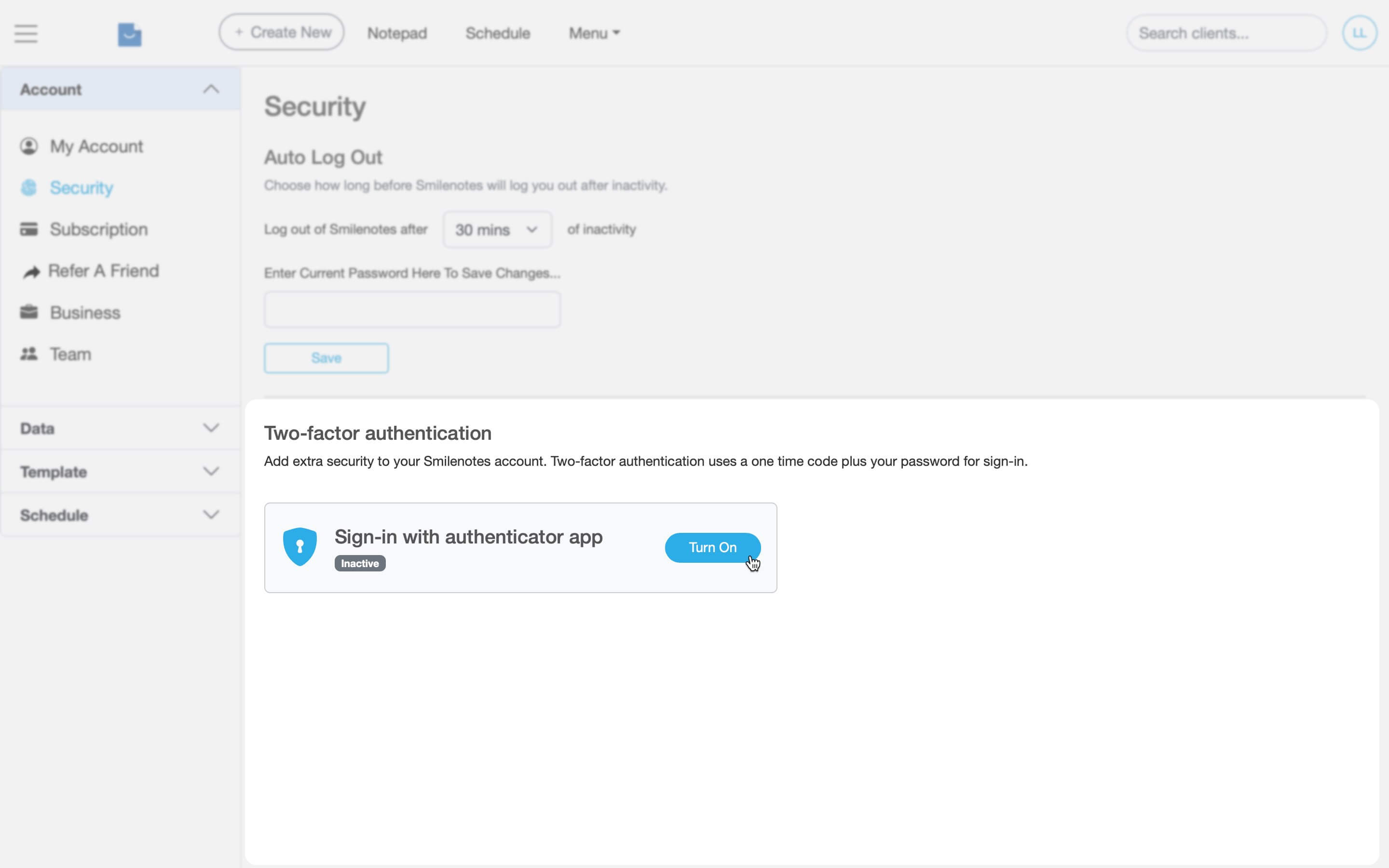
- At the prompt, enter your account password
Now add Smilenotes to your authenticator app
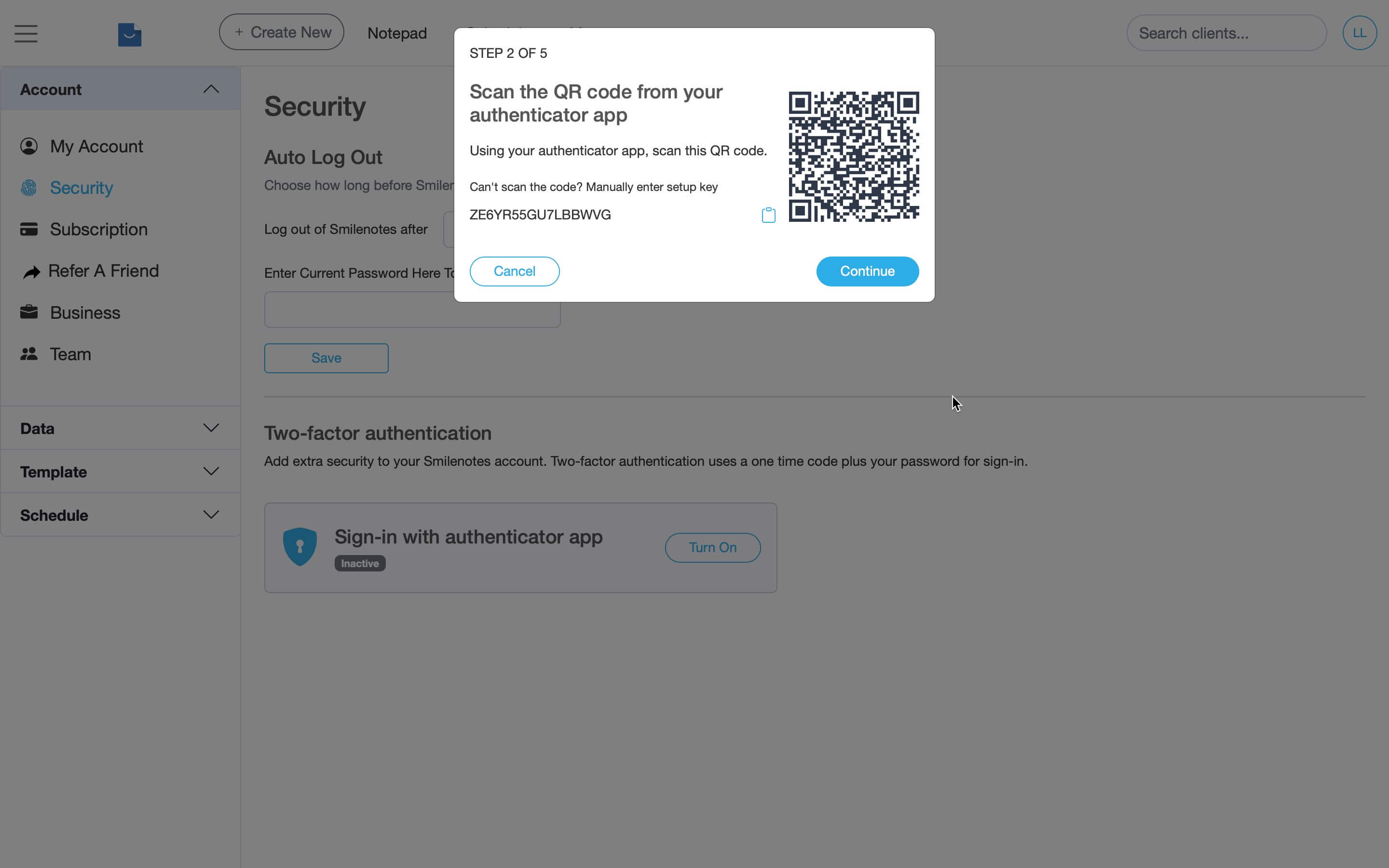
- Open up your authenticator app on your mobile phone and select the option to “Scan a QR code”. What is an authenticator app?...
- Scan the QR code displayed by Smilenotes then click “Continue”.
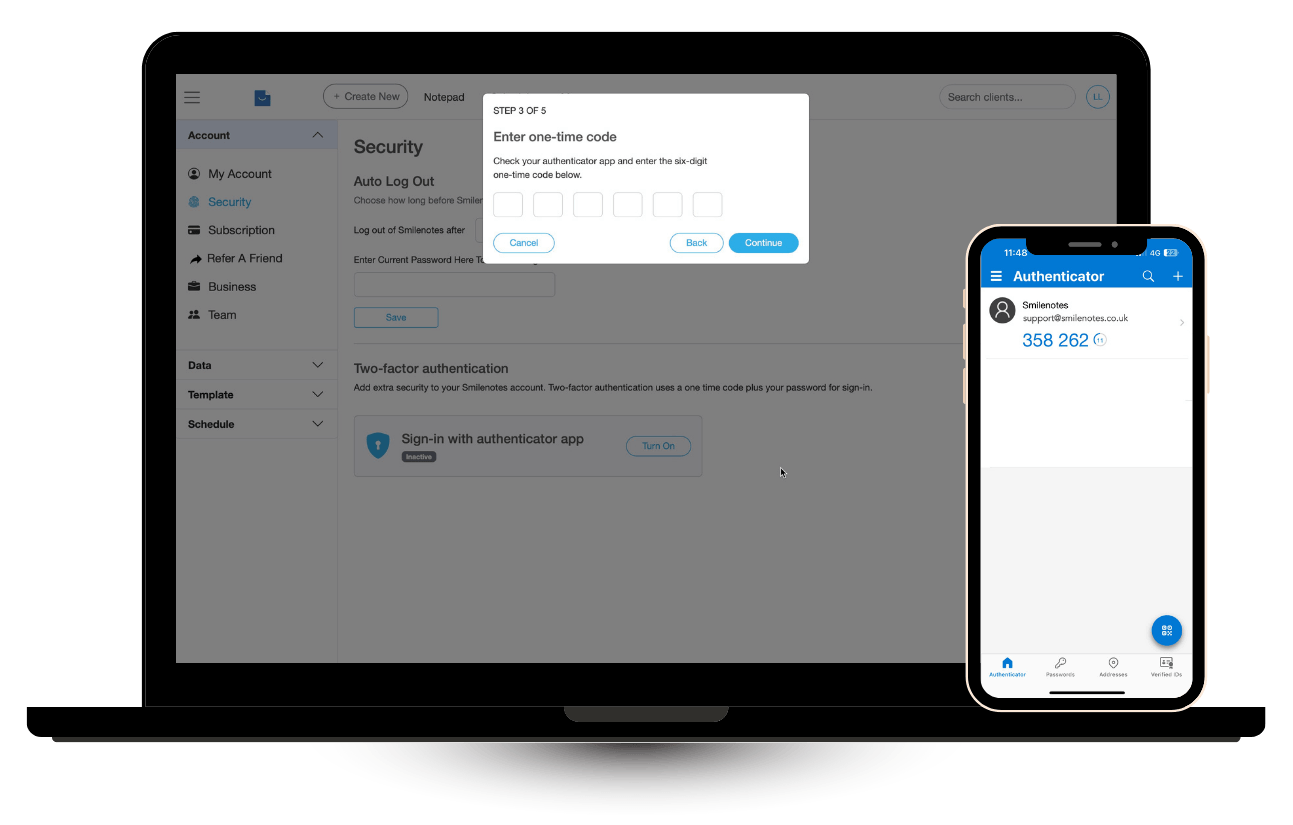
- Enter the six digit code generated by your authenticator app then click “Continue”.
- Smilenotes creates your recovery keys, then lists them in the next pop-up window. To save your keys, click Download (.txt file).
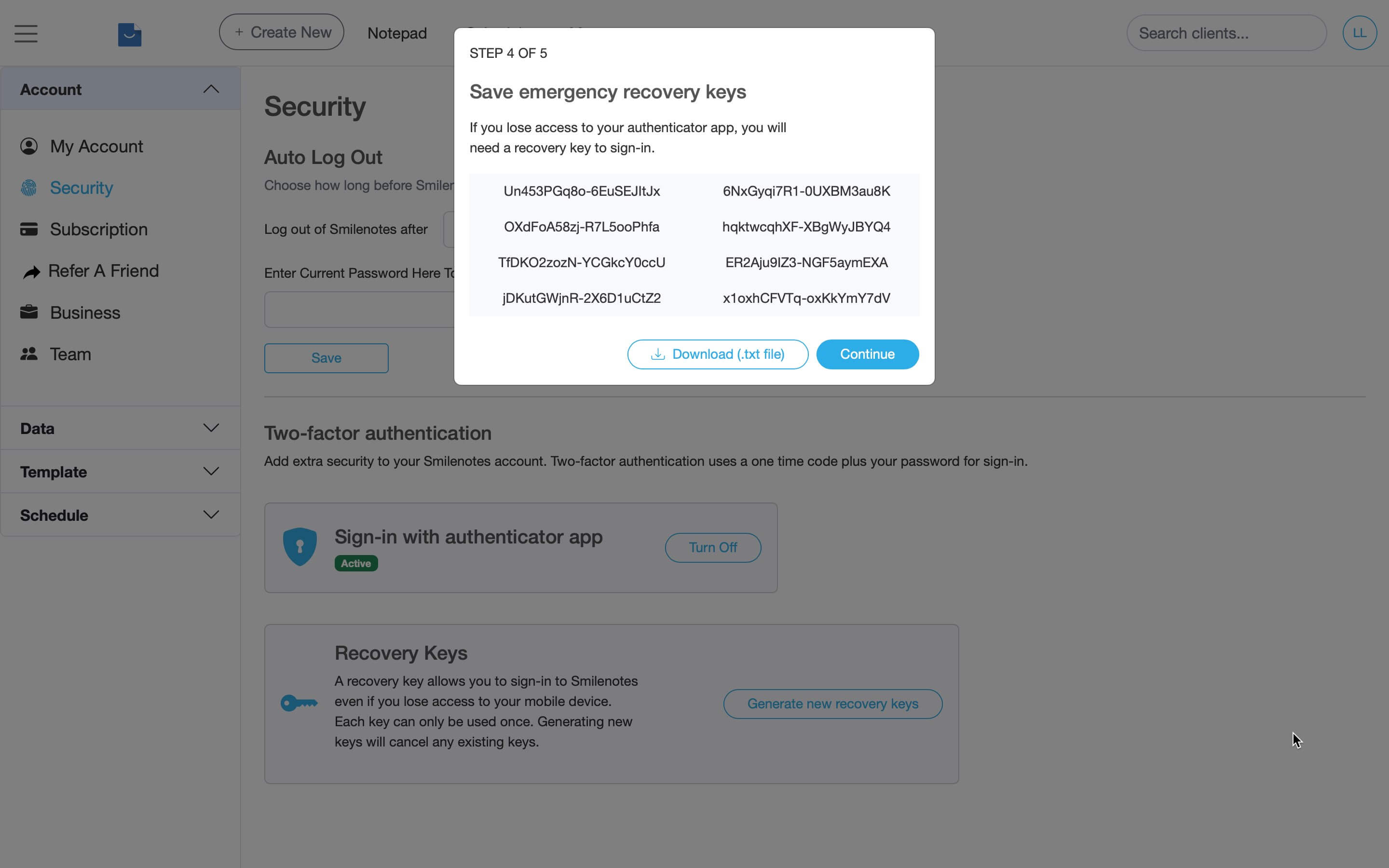
- Click “Done” to finish
Updated: 10 February 2026